

CAPTCHA and anti-spam protection
The Anti-Spam settings keep bots and abusers away from sign-up, sign-in and the public ticket form. Use them together.
- Go to System → Settings and open Anti-Spam.
- Turn on the protections you want (below).
- Select Update.
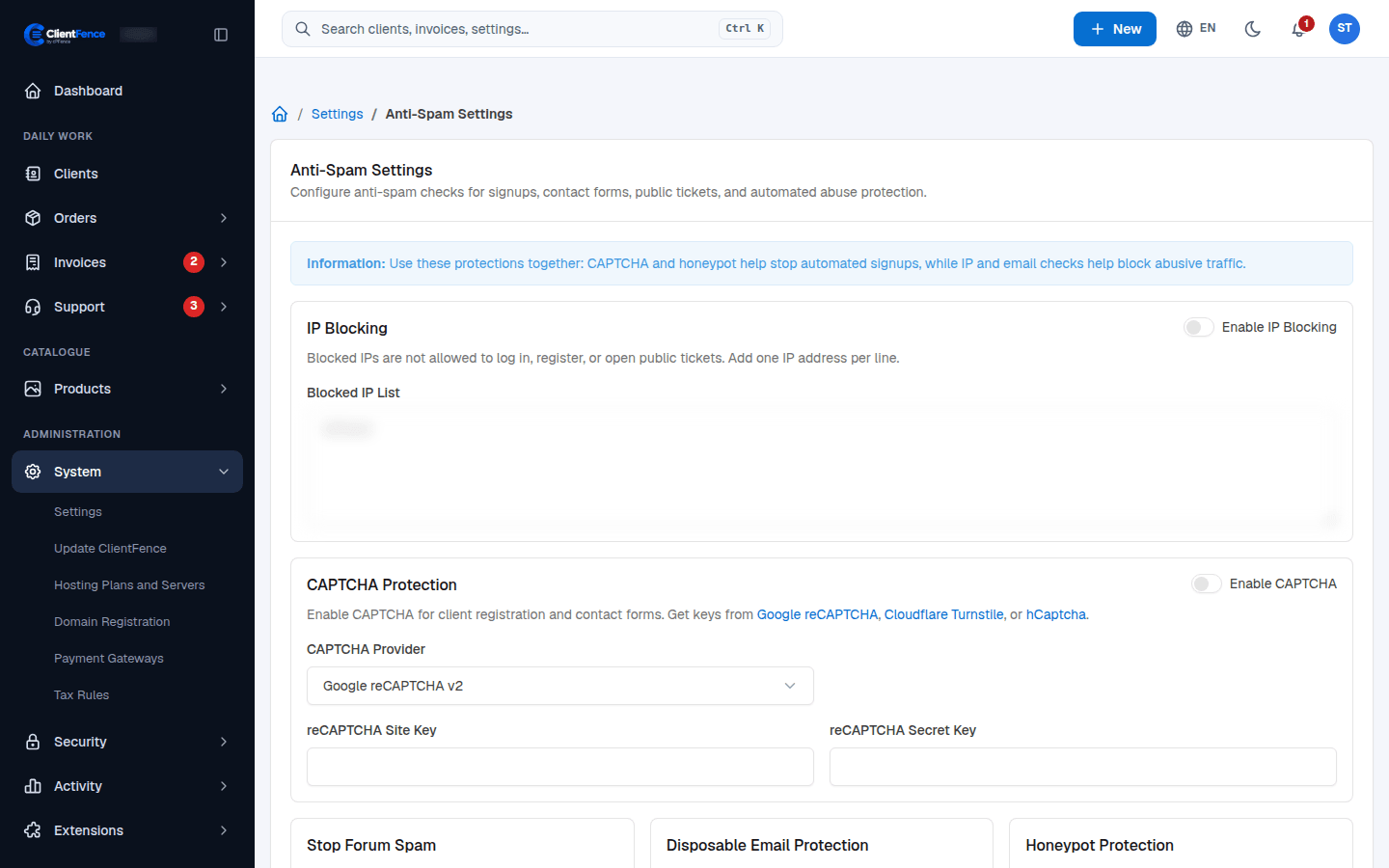
| Protection | What it does | Where it applies |
|---|---|---|
| IP Blocking | Refuses each address in the Blocked IP List (one per line) | Client and staff sign-in, sign-up, profile changes, public tickets |
| CAPTCHA Protection | Asks for a CAPTCHA | Client sign-up, client sign-in, password reset requests, public tickets |
| Stop Forum Spam | Checks the visitor against the Stop Forum Spam database | Sign-up, public tickets |
| Disposable Email Protection | Refuses temporary email addresses | Sign-up, public tickets |
| Honeypot Protection | Adds a hidden field that only bots fill in | Sign-up |
CAPTCHA providers
Section titled “CAPTCHA providers”Pick a CAPTCHA Provider: Google reCAPTCHA v2, Google reCAPTCHA v3, Cloudflare Turnstile or hCaptcha. Paste the site key and secret key you get from that provider. For reCAPTCHA v3, the reCAPTCHA v3 Minimum Score (0.0 to 1.0) sets how strict it is.
For sign-in PINs and country limits, see Sign-in security.