

Sell and manage API key products
API Key Product gives each activated order a key your application can check. If it is off, turn on API Key Product in Extensions → Overview first.
Set up the product
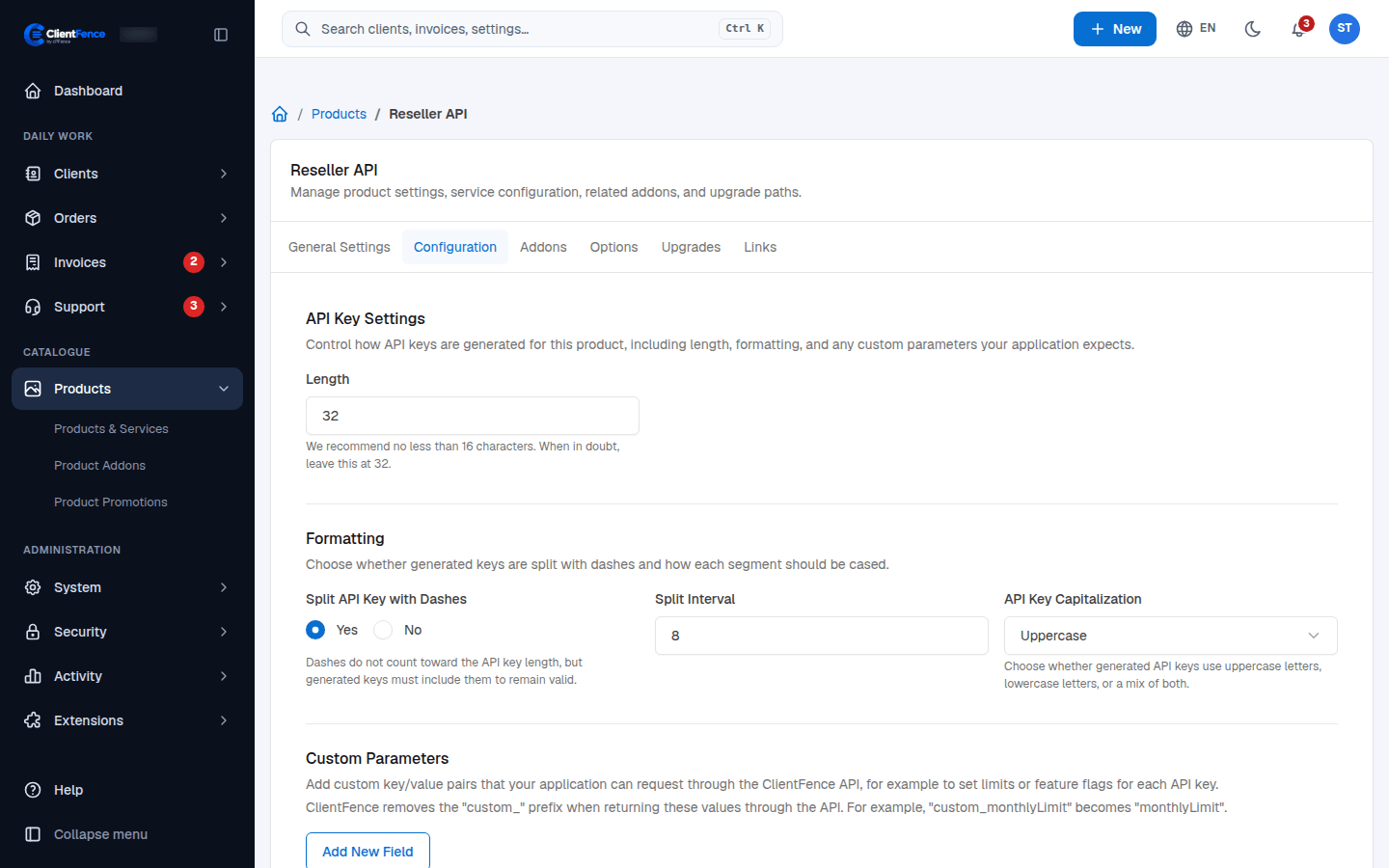
Section titled “Set up the product”- Create an API key product and open its Configuration tab (API Key Settings).
- Choose the options below.
- Select Update.
| Option | What it does |
|---|---|
| Length | Characters before dashes; default 32. |
| Split API Key with Dashes | Adds dash separators. Keep them when checking the key. |
| Split Interval | Characters between dashes; default 8. |
| API Key Capitalization | Uppercase, Lowercase or Mixed. |
| Custom Parameters | Add New Field stores named values in the product configuration. |
What clients see
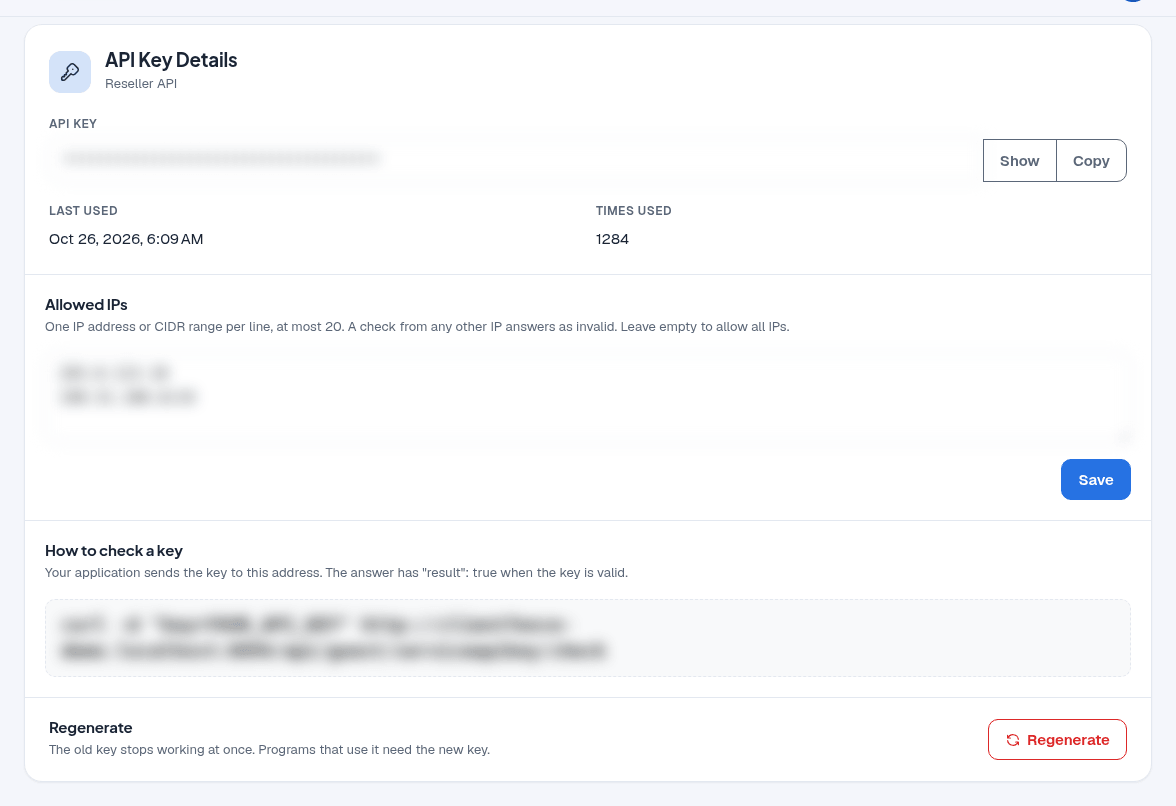
Section titled “What clients see”On an active order, Show reveals the hidden key; Hide conceals it and Copy copies it. Regenerate asks for confirmation: the old key stops working immediately.
Last used and Times used record successful checks only. In Allowed IPs, enter up to 20 IPv4/IPv6 addresses or CIDR ranges, one per line, then select Save. Empty allows all IPs.
Check a key
Section titled “Check a key”POST the required key parameter to your ClientFence site:
curl -d "key=YOUR_API_KEY" https://example.com/api/guest/serviceapikey/checkThe answer has "result": true for an active, unexpired order checked from an allowed IP;
otherwise "result": false for an inactive or expired order or a disallowed IP.