

Quotes
A quote is a price offer. Send it to an existing client or to a prospect who has no account yet. When it is accepted, the prospect gets an account and the invoice is made and emailed.
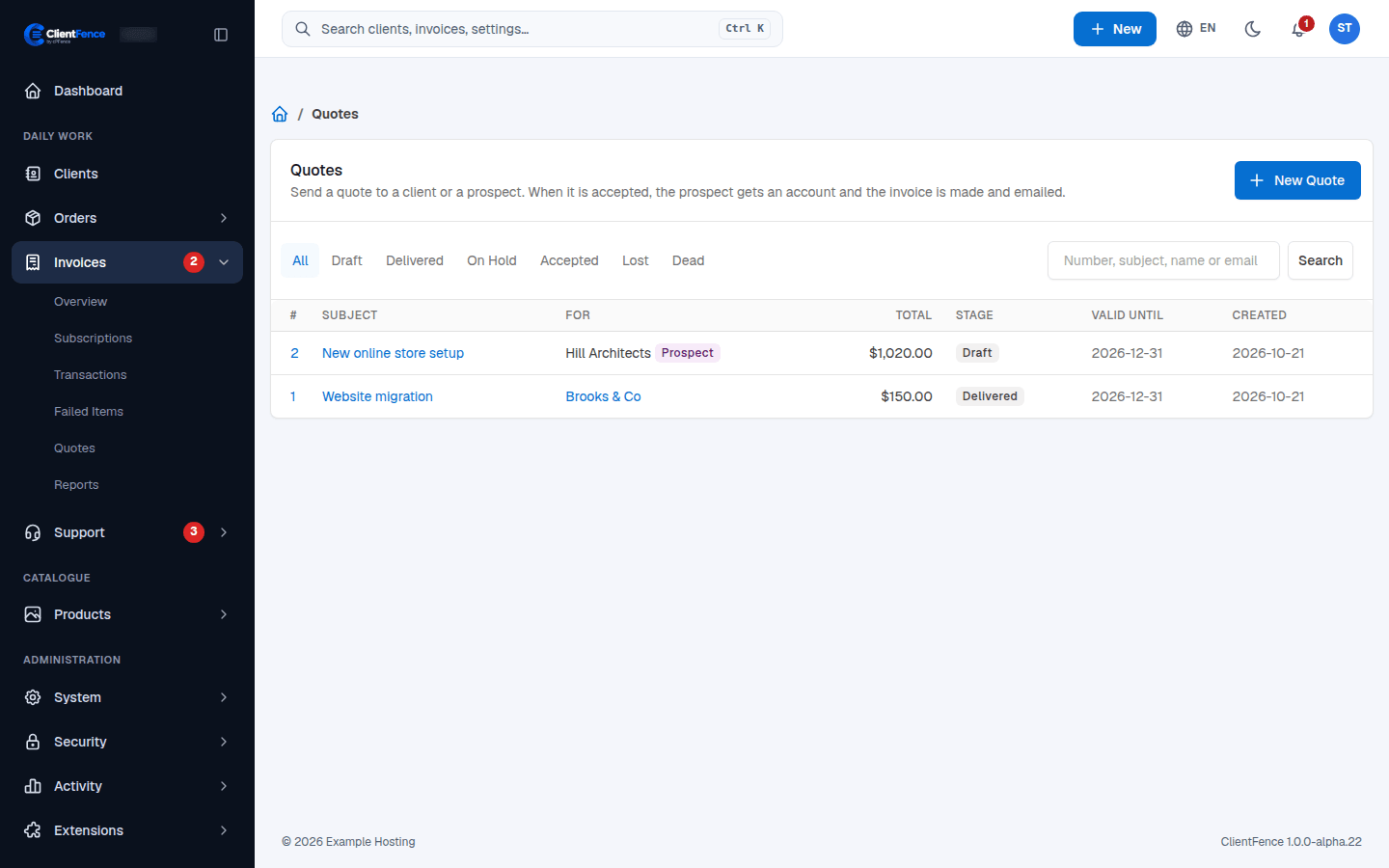
Send a quote
Section titled “Send a quote”- Go to Invoices → Quotes and select New Quote.
- Choose a Client, or a Prospect with a name and email.
- Add a Subject, the lines (Description, Qty, Unit price, an optional Discount %) and Valid until if you like. Select Save quote.
- Select Send by email. The client gets the PDF and a link to accept it.
When the client answers
Section titled “When the client answers”The client opens the quote in the client area or from the link and selects Accept the quote or Decline the quote. You can also select Accept for the client yourself.
A prospect who accepts gets a client account and an email to set a password.
Stages
Section titled “Stages”| Stage | Meaning |
|---|---|
| Draft | Saved, not sent yet. |
| Delivered | Sent to the client. |
| On Hold | Paused. It can still be accepted. |
| Accepted | Accepted. The Invoice link opens its invoice. |
| Lost | Declined by the client, or closed by you. It can no longer be accepted. |
| Dead | Closed. It can no longer be accepted. |
Tax on the taxed lines follows the client’s tax rule. See Taxes and credit notes.