

Store and order form
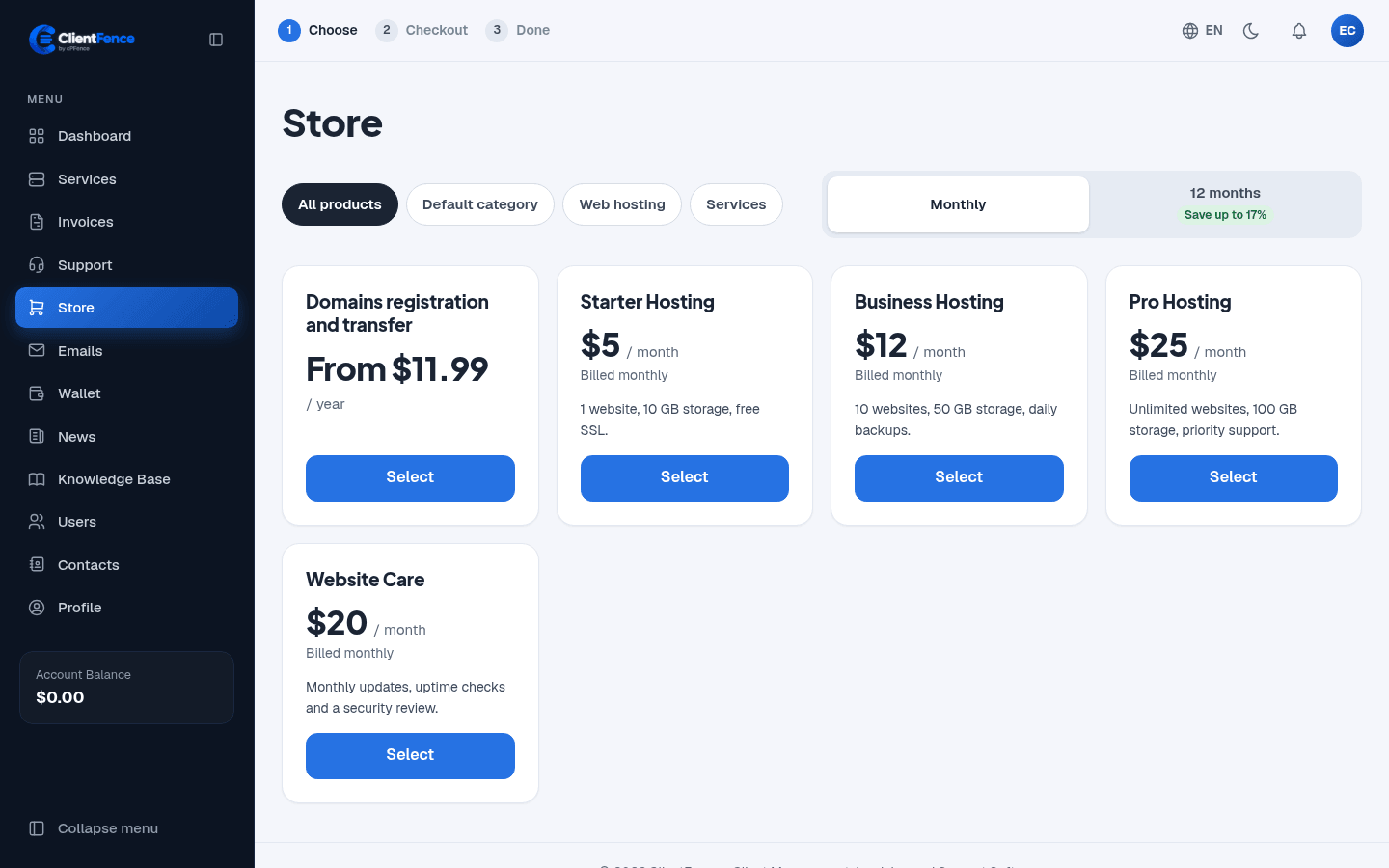
Clients order from Store in the client area. The store lists your products by category, with a switch between billing cycles. Select opens the product’s order form.
How a client orders
Section titled “How a client orders”- In Store, pick a product and select Select.
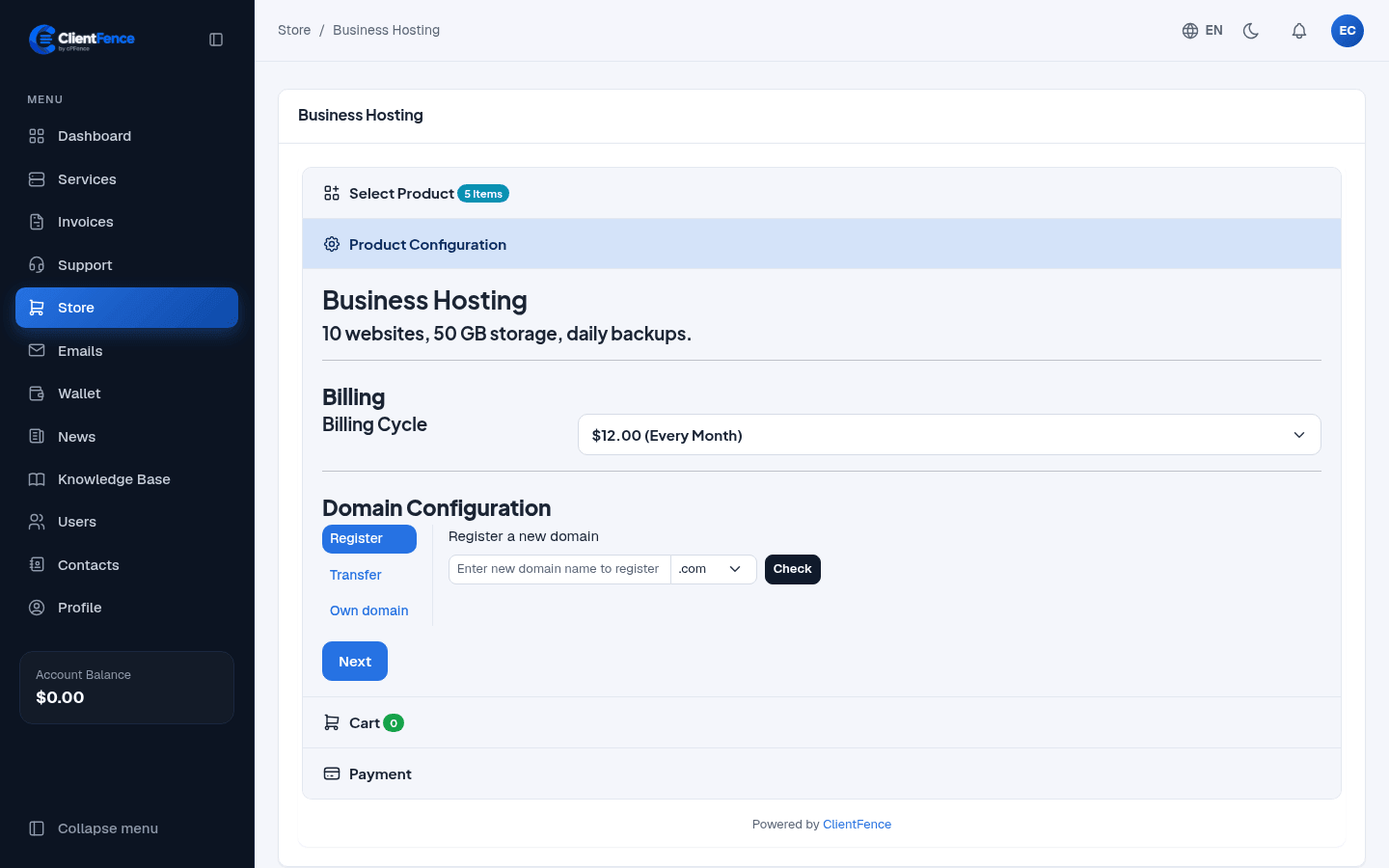
- Choose the billing cycle, any options and addons, and answer the order questions if the product has them.
- For hosting and domains, complete Domain Configuration and select Add to cart. Other products can be checked out directly or added to the cart.
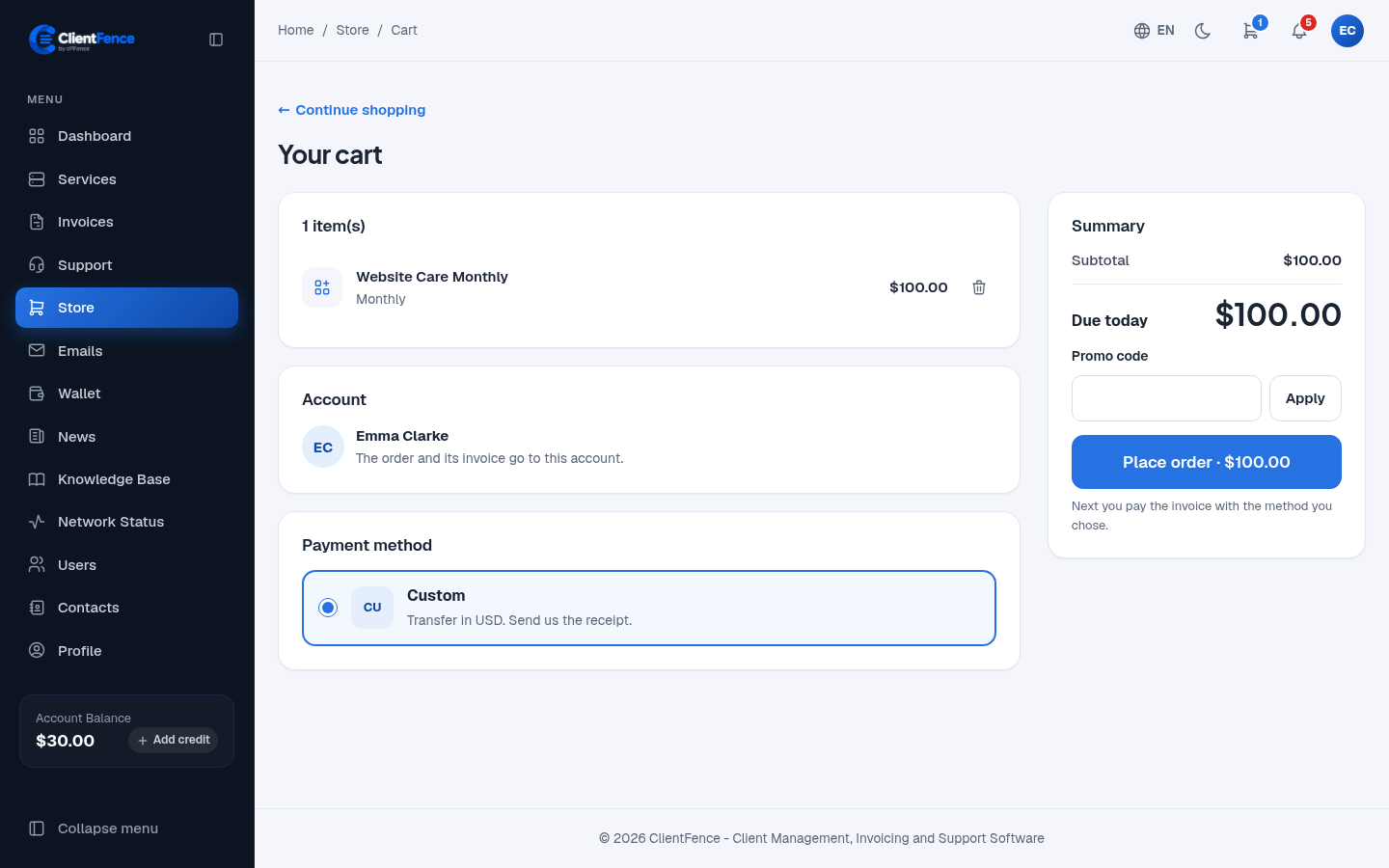
- Sign in, or sign up when the store allows it. At checkout, review the items, apply any promo code, choose a payment method, and select Place order.
- Pay the invoice. The service starts as set in the product’s Activation.
Open the cart icon to review the items and their total before placing the order. Hosting can use a domain the client already owns. Standalone domain orders are for registrations and transfers.
Who can order
Section titled “Who can order”Go to System → Settings → Orders, find Store and choose Who can order:
| Setting | Who sees the store |
|---|---|
| Closed | Nobody. Staff can still create orders in the admin area. |
| Custom group | Signed-in clients in the client group you choose. |
| Everyone | Anyone. New visitors can sign up at checkout while client sign-up is on. |
Here you also set the store title and subtitle, and make a Store preview link to show the store to someone while it is closed.
Ask your own questions
Section titled “Ask your own questions”Build a form under System → Settings → Form Builder, then pick it as the product’s Order Form on its General Settings tab. The answers are saved with the order.