

Send a mass email to clients
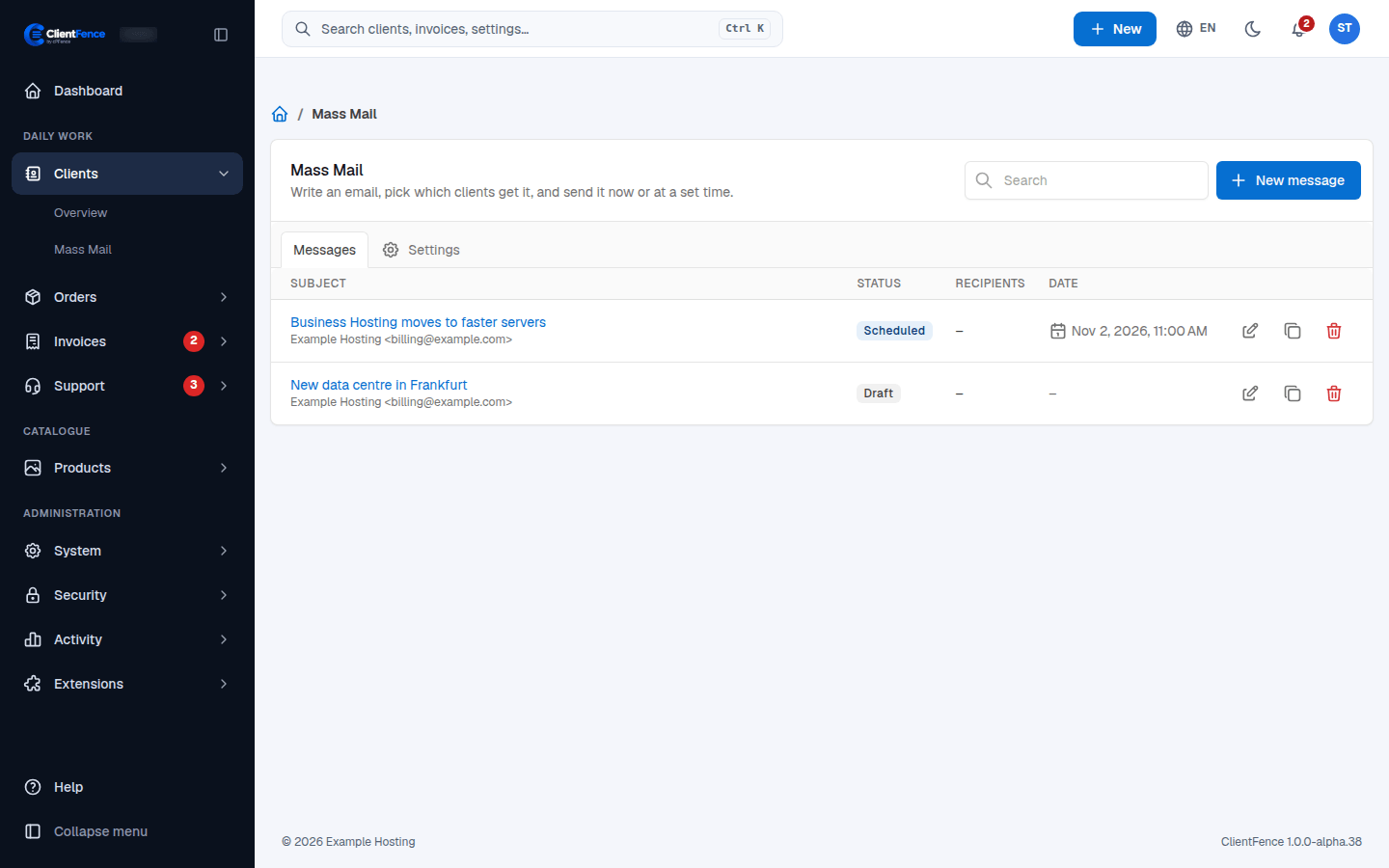
Mass Mail sends one message to many clients at once, such as a price change or a new service. Find it under Clients → Mass Mail. If it is not there, turn on Mass Mail Tool in Extensions → Overview first.
Set the test client
Section titled “Set the test client”On the Settings tab, choose the Client to Send Test Email and select Save. Test emails go to this client, and the preview shows the message as this client sees it, so pick an account with your own address.
Write and send a message
Section titled “Write and send a message”- Select New message.
- Write: check From Name and From Email, then fill in the Subject and the Message. Insert a placeholder adds details such as the client’s first name, filled in for each client.
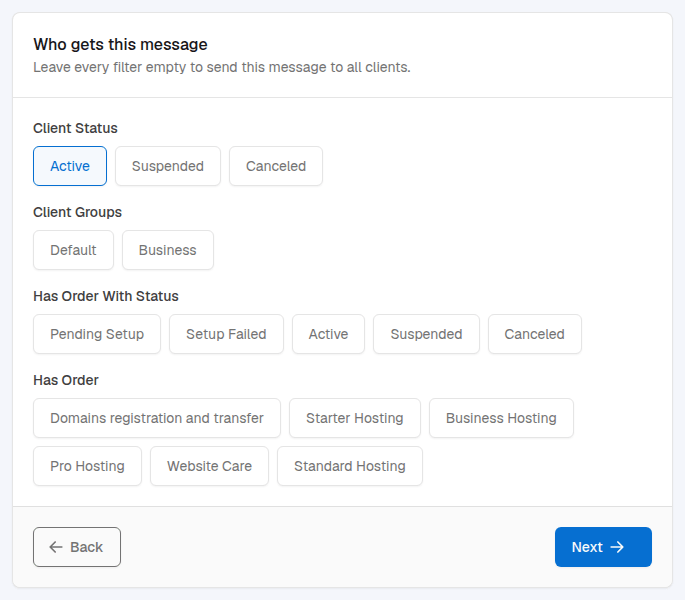
- Audience: choose who gets it with Client Status, Client Groups, Has Order With Status and Has Order. Leave every filter empty to send to all clients. The count reads Recipients: N; clients who opted out of marketing email are skipped.
- Review and send: check the preview and select Send test. Then select Send now and confirm (Send this message? Recipients: N), or pick a date and time under Or send it later and select Schedule.
Your changes are saved when you move between steps. A scheduled message can still be edited, and Cancel schedule makes it a draft again.
After sending
Section titled “After sending”The emails go out from the email queue with each cron run (see Email settings and history). Open a sent message to see its delivery report: how many were Sent, Waiting in the email queue, Failed or Skipped (opted out), and the status of each client. A message is sent only once and cannot be changed afterwards; select Copy to reuse it.
When marketing opt-out is enabled, Mass Mail skips clients who have opted out and adds an unsubscribe link to the messages.