

Proxies, access lists and sessions
These settings are on Security → Settings, on the Proxies, Access lists and
Sessions tabs. Only Super Administrators can change them. They are saved in config.php,
so the web server user must be able to write that file.
Proxies
Section titled “Proxies”When visitors reach the portal through a proxy such as Cloudflare, every request comes from the proxy’s address. Until you trust the proxy, every visitor looks the same to ClientFence: staff country and IP rules, rate limits, the login history and the logs all see the proxy.
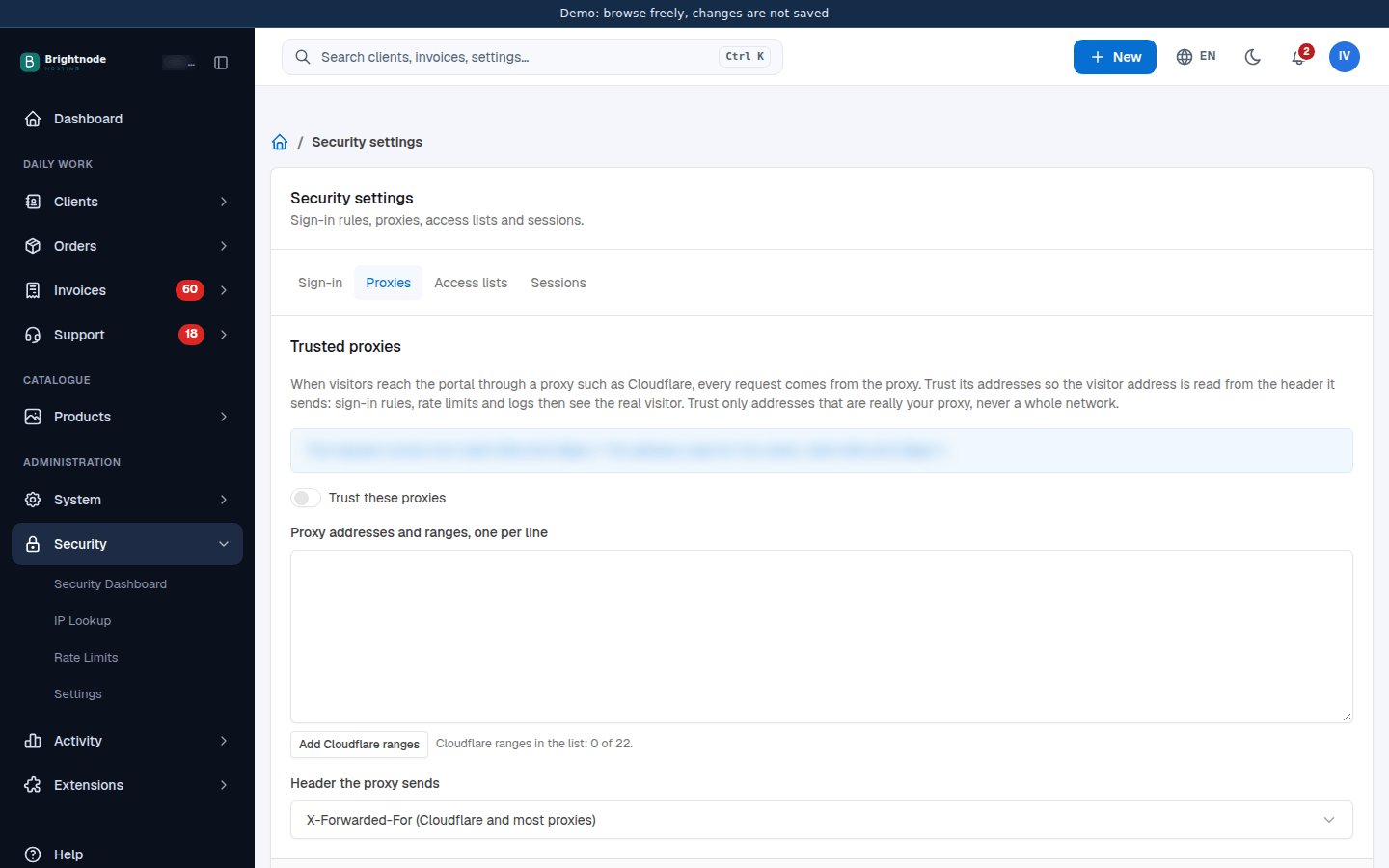
- Go to Security → Settings and open the Proxies tab. The blue box shows the address this request comes from and the address ClientFence uses for you.
- Turn on Trust these proxies.
- For Cloudflare, select Add Cloudflare ranges. For another proxy, enter its addresses or ranges under Proxy addresses and ranges, one per line.
- Keep Header the proxy sends on X-Forwarded-For (Cloudflare and most proxies) unless your proxy documents another one.
- Select Save, then reload the page: the address used for you should now be your own.
Trust only addresses that really are your proxy. Anyone who can send requests from a trusted address can choose the visitor address ClientFence sees. Ranges wider than /8 (IPv4) or /16 (IPv6) are refused.
System → Settings → System → System Health warns under Visitor addresses when requests arrive through a proxy that is not trusted. Some web servers (LiteSpeed on Enhance, for example) already read the visitor address from Cloudflare themselves: the check then passes and says so, and the blue box shows your own address before you trust anything.
Access lists
Section titled “Access lists”- Never rate limited: requests from these addresses skip every rate limit (sign-in tries, password resets, API calls). Use it for your own fixed addresses, such as a monitoring server.
- API keys from these addresses only: a request signed with an API key from any other address is refused. Leave it empty to allow API keys from anywhere. The admin and client pages are not affected.
Enter addresses or ranges, one per line, such as 203.0.113.10 or 198.51.100.0/24.
Sessions
Section titled “Sessions”Check that each request comes from the same browser compares every signed-in request with the browser that signed in: its type, system, language and address. A session that suddenly looks like another browser is signed out, so a stolen session cookie cannot be used elsewhere. It is on by default. Turn it off only if staff or clients are signed out for no reason.