

Upgrades and downgrades
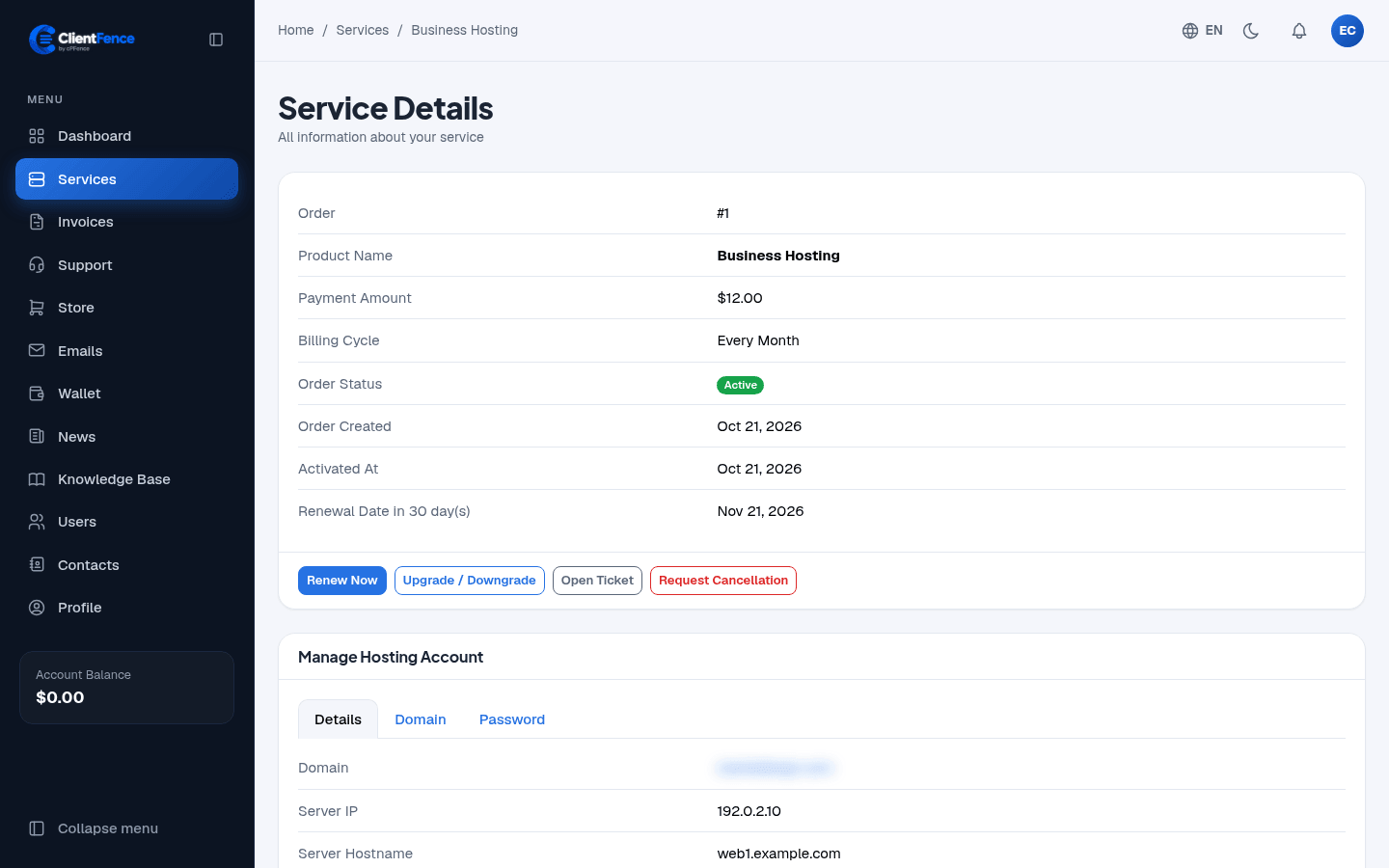
Clients can move an active service to another product or billing cycle from its page. The unused part of the current period counts towards the new price.
What the client does
Section titled “What the client does”- Open the service under Services and select Upgrade / Downgrade.
- Pick a choice. Each one shows whether it is an Upgrade or a Downgrade, the new renewal date and what it costs.
- Select Continue.
An amount to pay is invoiced, and the change is made as soon as the invoice is paid. A downgrade gives the unused time back as account credit (with its tax) and records a credit note; the credit is used for the next invoices.
Change options works the same way for the configurable options alone. The quote uses the current service’s recurring price and the paid time left. If a PayPal subscription blocks the change, cancel that subscription in PayPal before trying again.
What staff set
Section titled “What staff set”| Where | What it does |
|---|---|
| System → Settings → Orders, Upgrades and Downgrades | Turns upgrades and downgrades on or off for everyone. |
| A product’s Upgrades tab | Lists the products its services can move to, and can allow or block upgrades and downgrades for this product. |
| An order’s Upgrades tab | Allows or blocks them for this one service, and shows the Upgrade History. |
Staff can also use Change Product on an order’s Details tab. A service’s own upgrade rule wins over its product’s. A paid change that could not be applied is listed under Failed actions.