

Two-factor sign-in for clients
With two-factor sign-in on, signing in to the client area needs the password and a code from an authenticator app, such as Google Authenticator, Microsoft Authenticator or 1Password. Each client and each user of an account turns it on for their own sign-in.
Turn it on
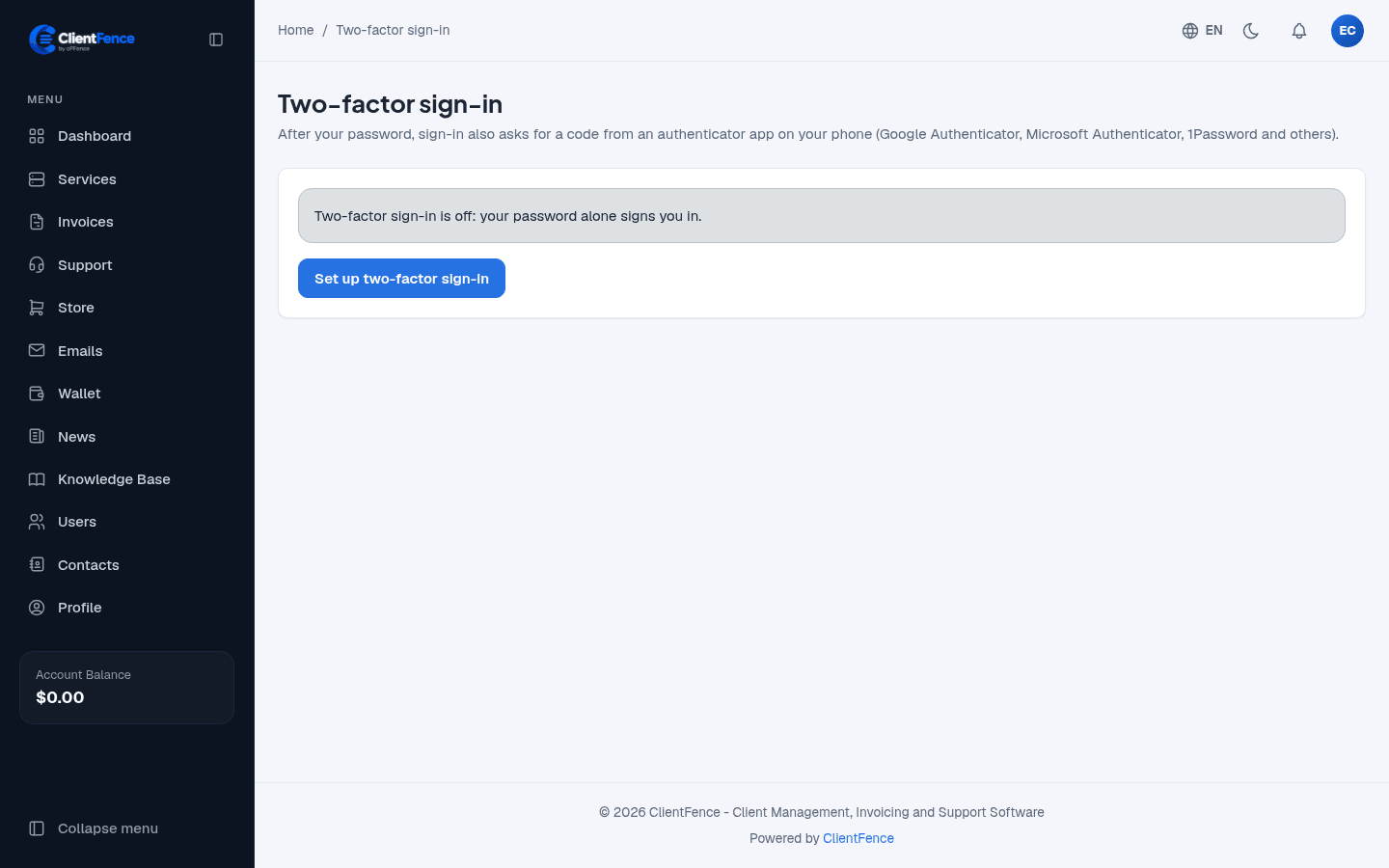
Section titled “Turn it on”- In the client area, open the account menu (top right) and select Two-factor sign-in.
- Select Set up two-factor sign-in.
- Scan the QR code with the authenticator app, or type the Key into it.
- Enter the 6-digit Code the app shows and your Password.
- Select Switch on two-factor sign-in.
- Write down the backup code and keep it away from your phone. It is shown only once. Select Done.
Lost phone
Section titled “Lost phone”The backup code signs you in once instead of a code. Then select Make a new backup code.
No backup code either? Ask support. Staff can switch off two-factor sign-in for a login on the client’s page in the admin area, on the Users tab. They should do this only when they are sure who is asking.
To stop using it, select Switch off and confirm with a code and your password.