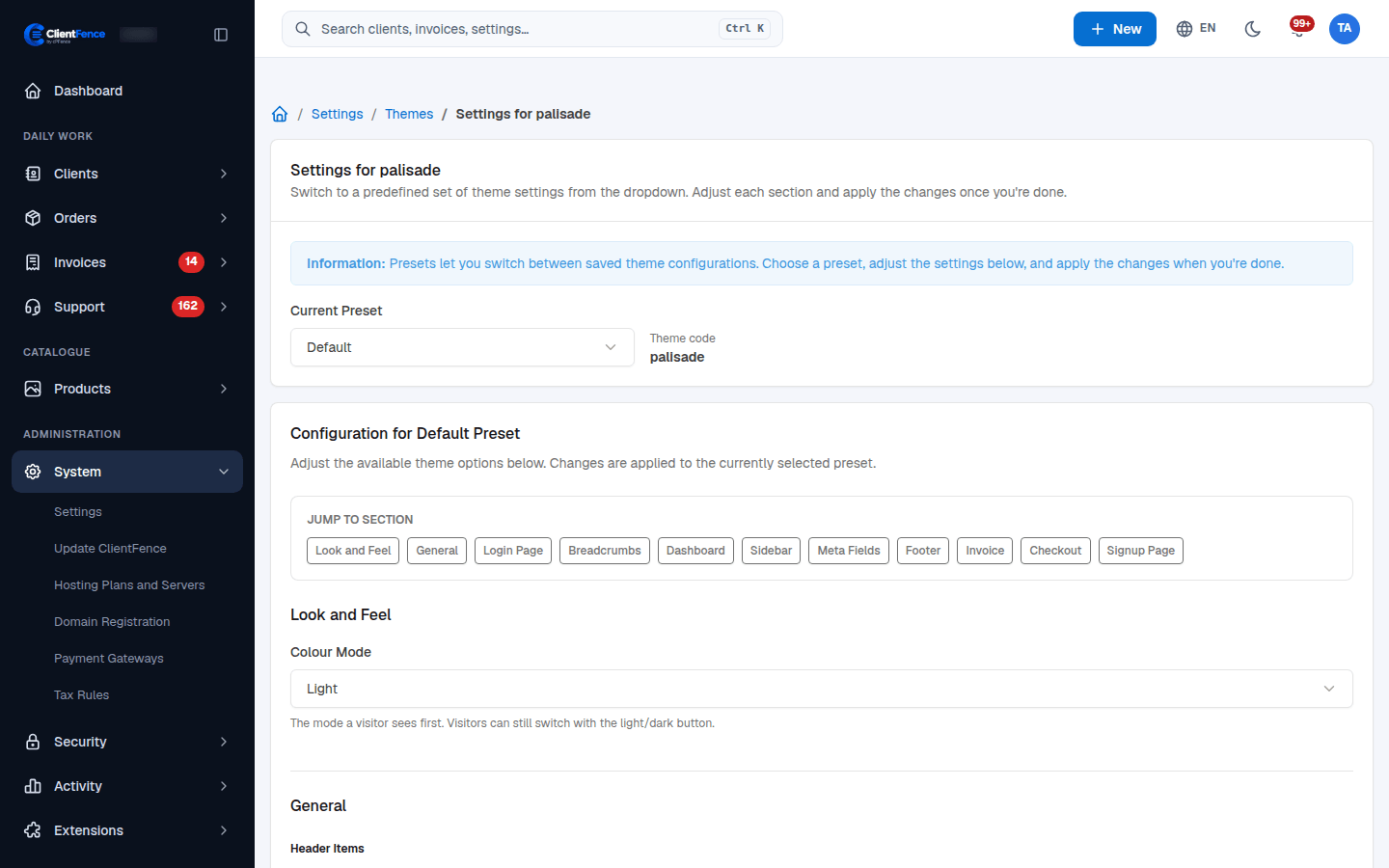
Configure the Palisade client theme
Palisade settings control the client area’s layout and visible content without editing templates.
- Open System → Settings → Themes and select Settings for palisade.
- Choose Current Preset. Review the sections using the settings overview.
- Set Colour Mode, header links, login-page links, dashboard content, sidebar and footer options as needed.
- Select Apply Changes, then open the client area in a signed-out browser and as a signed-in client.
- Check desktop and mobile layouts, dark mode and any languages you offer.
The initial colour mode can be light, dark or follow the visitor’s device; visitors can still switch it. Hiding a navigation link changes what is shown, not the underlying account permissions.
Changes are applied to the selected preset. Select another preset only when you intend to switch configurations. To keep a separate configuration, tick Save current settings as a new preset, enter New Preset Name and select Apply Changes.
Company identity and logo are configured separately under Company and branding. For store layout and ordering choices, see Store and order form.