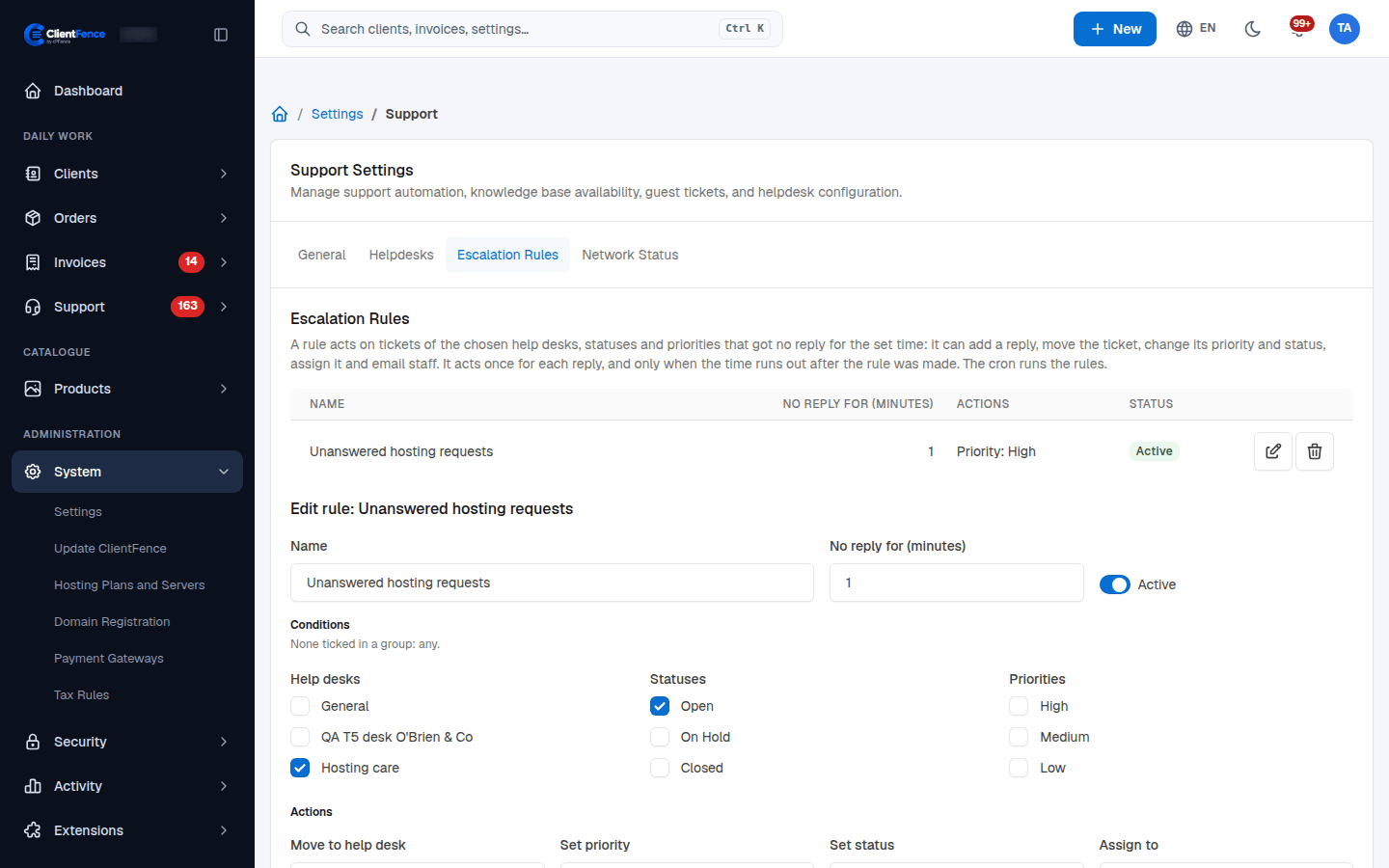
Automate ticket escalation
Escalation rules run during cron and act on tickets that match their conditions and time without a reply.
- Go to System → Settings → Support → Escalation Rules.
- Name the rule, set No reply for (minutes) and choose whether it is Active.
- Under Conditions, select the help desks, statuses and priorities. Nothing ticked in a group means any value in that group.
- Under Actions, choose a destination help desk, priority, status, staff assignment, notification recipients or Add a reply. Select at least one action.
- Save the rule and test it with a ticket in a dedicated help desk. Wait for the configured delay and the next cron run, then check its history and resulting state.
For example, select your sales help desk and Open, wait 60 minutes, and raise the priority to High. Review broad rules carefully before enabling them.
Rules act when the delay expires after the rule was created; they leave tickets already overdue at creation alone. A rule does not repeatedly act on the same unchanged reply. A new reply can make the ticket eligible again. Closing through an escalation rule does not send the help desk’s feedback request. For feedback and reopen policies, see Helpdesks.