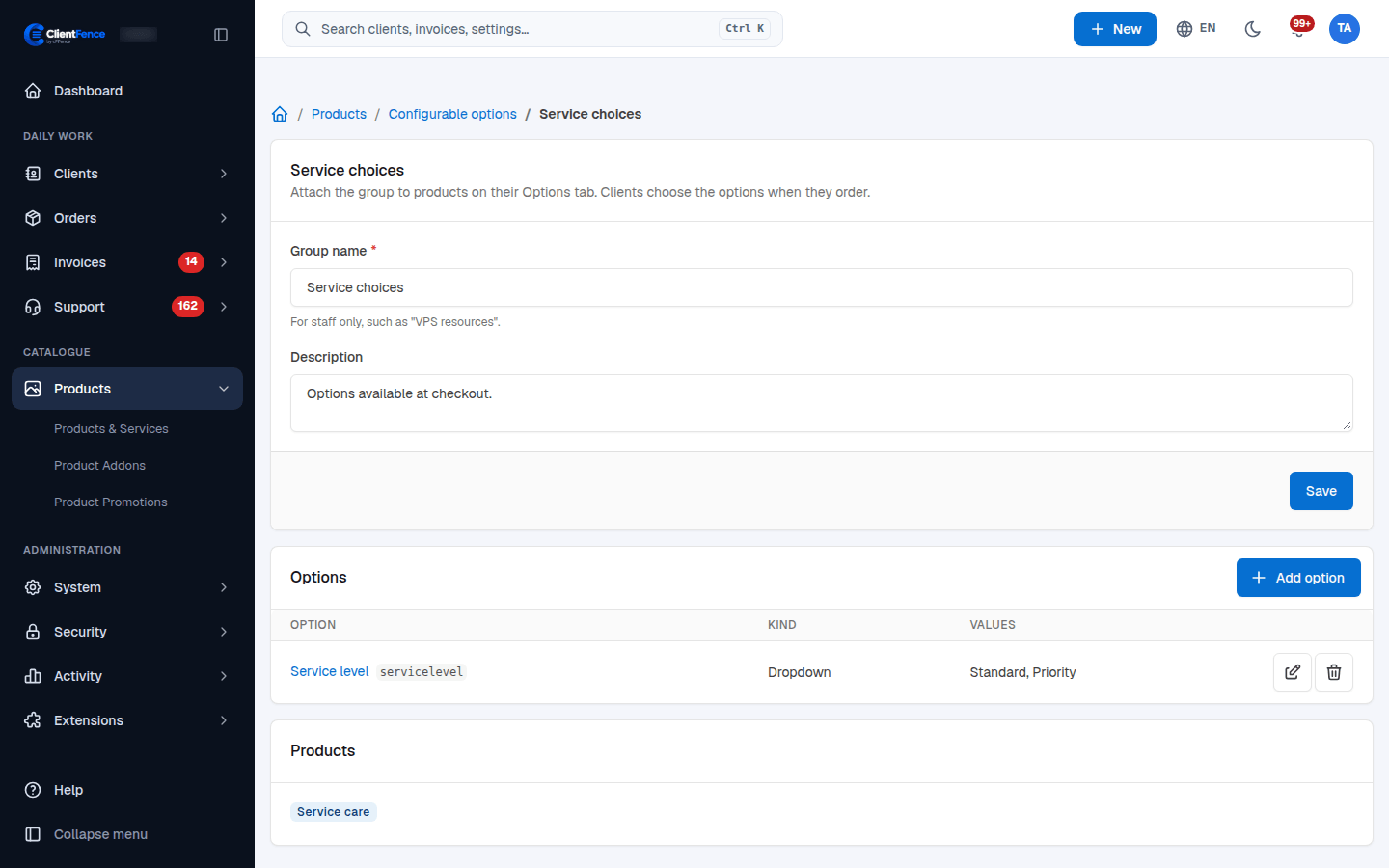
Create configurable options
Configurable options add priced choices to a product. Use custom forms when you only need to collect information.
- Open Products → Configurable options and create a group with a Group name.
- Select Add option, name it and choose its kind.
- Add the available values and their prices for the billing periods you sell. Save the option.
- Open a product’s Options tab, attach the group and save.
- Open the product’s order form, select each choice and check the setup and recurring totals before accepting orders.
| Kind | Use it for |
|---|---|
| Dropdown / Radio buttons | One selection from named, priced values. |
| Yes/no | An optional extra with one price. |
| Quantity | Units priced individually; set the minimum, maximum and unit label. |
Hide an option or value when it should no longer appear on new orders. Existing services keep the choices they bought, including when you remove their catalogue options. An option’s kind cannot be changed after creation; create a new option for a different kind.