

Payment gateways
A payment gateway is a way for clients to pay. The client picks one on the invoice page.
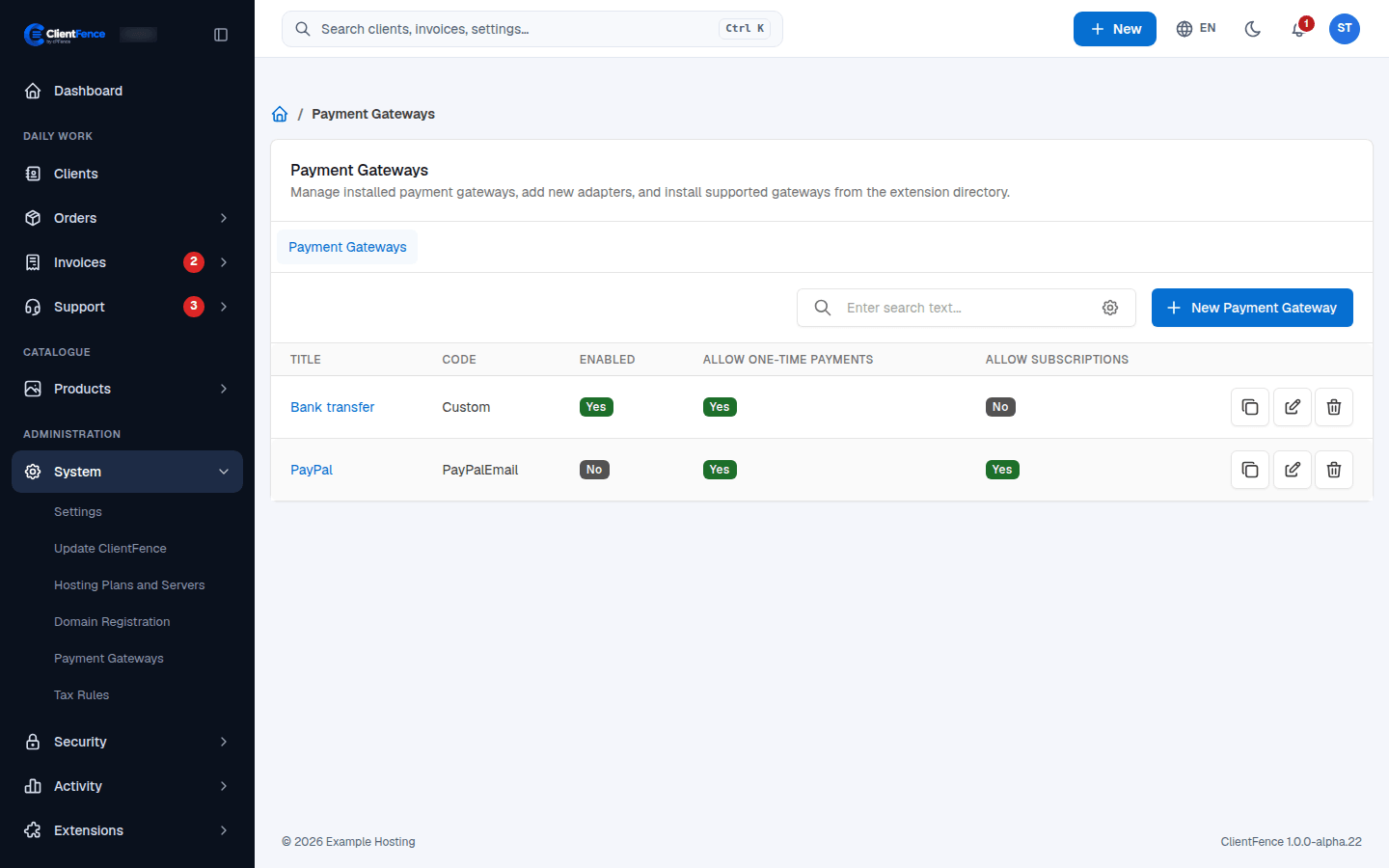
Add a gateway
Section titled “Add a gateway”- Go to System → Payment Gateways and select New Payment Gateway.
- Under Available Adapters, select Install next to the one you want.
- Open the new gateway from the list and fill in its settings.
- Turn on Enabled and select Update Gateway.
Gateways included
Section titled “Gateways included”| Gateway | How it works |
|---|---|
| Custom | Shows your own payment instructions, such as bank details. The client uploads a receipt and you mark the invoice paid. |
| CustomEgp | Like Custom, and can also show the total in Egyptian pounds at the current rate. |
| PayPalEmail | PayPal payments to your PayPal email address. |
| Stripe | Card payments with your Stripe API keys and webhook signing secret. |
Gateway settings
Section titled “Gateway settings”| Setting | What it does |
|---|---|
| Accepted Currencies | The currencies this gateway takes. Leave all unselected to allow all. |
| Allow One Time Payments | The client can pay a single invoice. |
| Allow Subscription Payments | The client can pay a recurring service as a subscription. Invoices → Subscriptions lists them. |
| Enable Test Mode | Uses the provider’s test account, where it has one. |
| IPN Callback URL | The address the provider sends payment notices to. |
Payment receipts for manual gateways are covered in Invoices.
Use Transactions to reconcile payments and Subscriptions to manage recurring gateway references and cancellation.