

Edit email templates
Every email ClientFence sends, such as a welcome email or a password reset, comes from a template. You can change its words or turn it off.
Edit a template
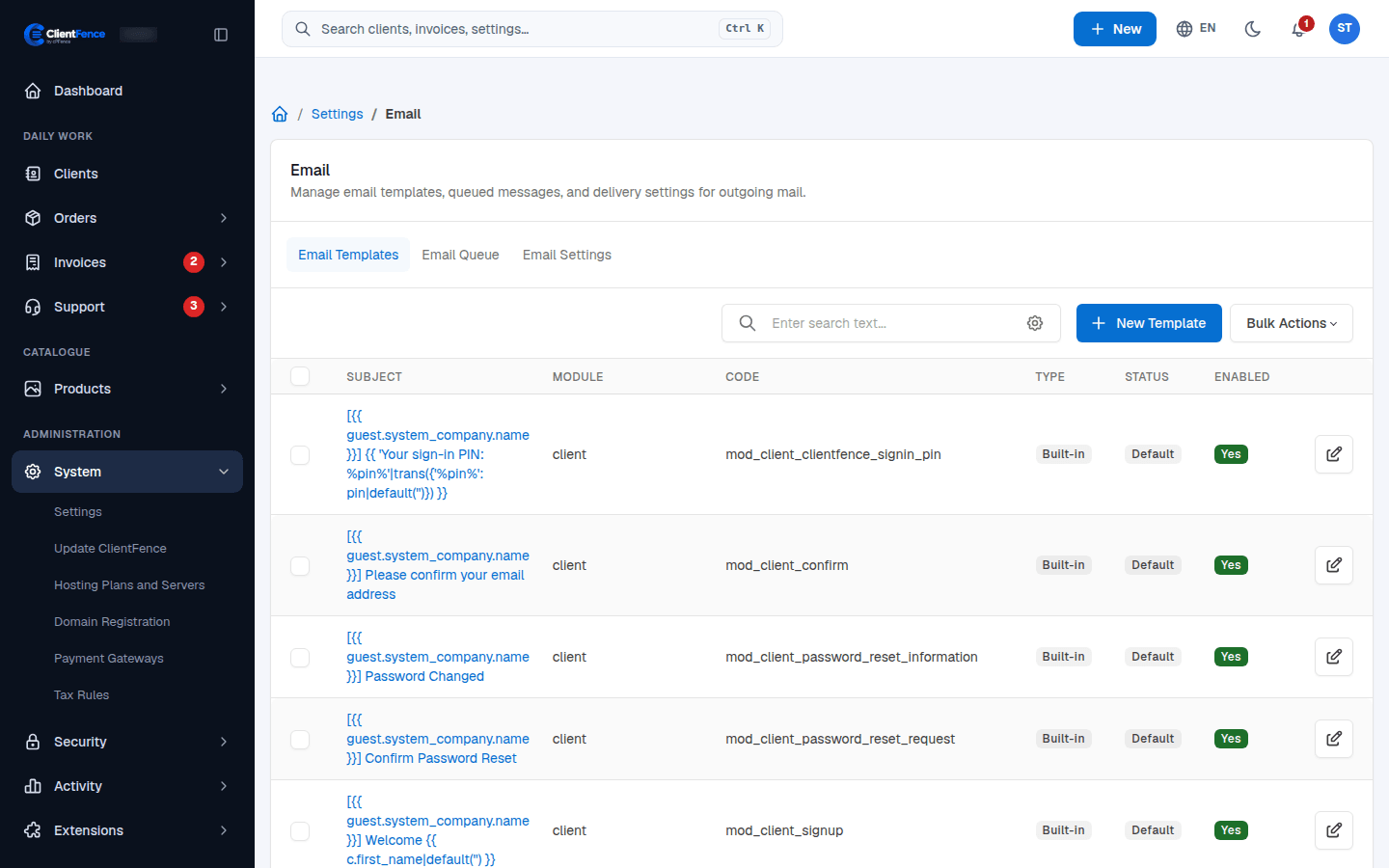
Section titled “Edit a template”- Go to System → Settings, open the Email card and the Email Templates tab.
- Select a subject, or the edit button on its row.
- Change the Email Subject and Email Message. The Variables tab lists the values you can use, such as the client’s name.
- Select Preview to see the result with example values, then Update.
Turn an email on or off
Section titled “Turn an email on or off”On the template’s Template Settings tab, switch Enabled off to stop that email. Bulk Actions has Enable All and Disable All.
For emails sent to staff, Staff Group Restrictions on the same tab chooses which staff groups get them.
Undo your changes
Section titled “Undo your changes”On a built-in template, Reset puts back the default subject and text.
To change the sender of all emails, see Email settings and history.