

Set up Stripe and PayPal
Clients can pay invoices by card with Stripe or with their PayPal account. Install the gateway first, as in Payment gateways, then open it from System → Payment Gateways.
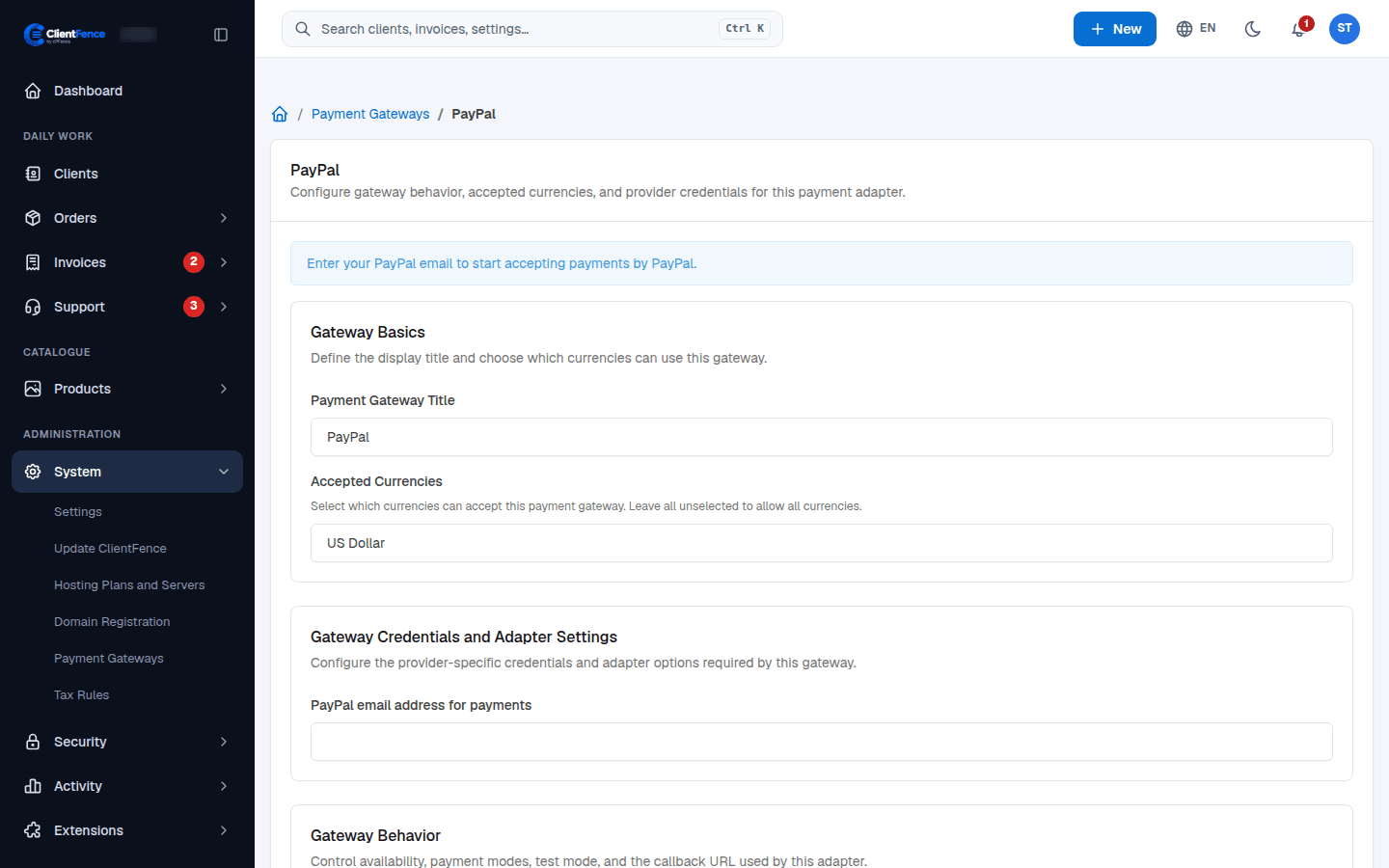
PayPal
Section titled “PayPal”- Enter your PayPal email address for payments.
- Turn on Enabled and the payment types you want, then select Update Gateway.
ClientFence sends PayPal the IPN Callback URL with each payment, so PayPal can report it back. Enable Test Mode sends payments to the PayPal sandbox.
Stripe
Section titled “Stripe”- In your Stripe dashboard, copy the publishable key and the secret key.
- Add a webhook endpoint in Stripe. Use the IPN Callback URL shown on the gateway
page, and select the payment, setup, invoice and subscription events, such as
payment_intent.succeededandinvoice.paid. - Copy the webhook’s signing secret.
- Paste the three values into Live Publishable Key, Live Secret Key and Live Webhook signing secret. For test payments, fill the Test fields and turn on Enable Test Mode.
- Turn on Enabled and select Update Gateway.
Payments and subscriptions
Section titled “Payments and subscriptions”For a partly paid invoice, Stripe or PayPal collects the remaining balance. Failed payments are listed under Invoices → Transactions. Check the gateway before taking another payment while it is retrying a subscription renewal.
For a cancellation request on a PayPal subscription, cancel the recurring payment in PayPal as well.