Invoices and payment receipts
Invoices → Overview lists every invoice. Filter by status (Paid, Unpaid, Refunded), client, currency or date, or select New Invoice.
Work on one invoice
Section titled “Work on one invoice”Open an invoice to see its summary. The buttons below it:
| Button | What it does |
|---|---|
| View as Client | Opens the invoice as the client sees it. |
| Send Reminder | Emails the client a payment reminder. |
| Mark as Paid | Records the remaining balance as paid. Use it after you receive that amount outside ClientFence. |
| Apply Credit | Applies some or all of the client’s available credit to an unpaid invoice. |
| Refund | Records a full or partial refund on a paid invoice. |
| Downloads the invoice. Use the adjacent menu to choose a different installed language. |
Part payments and credit
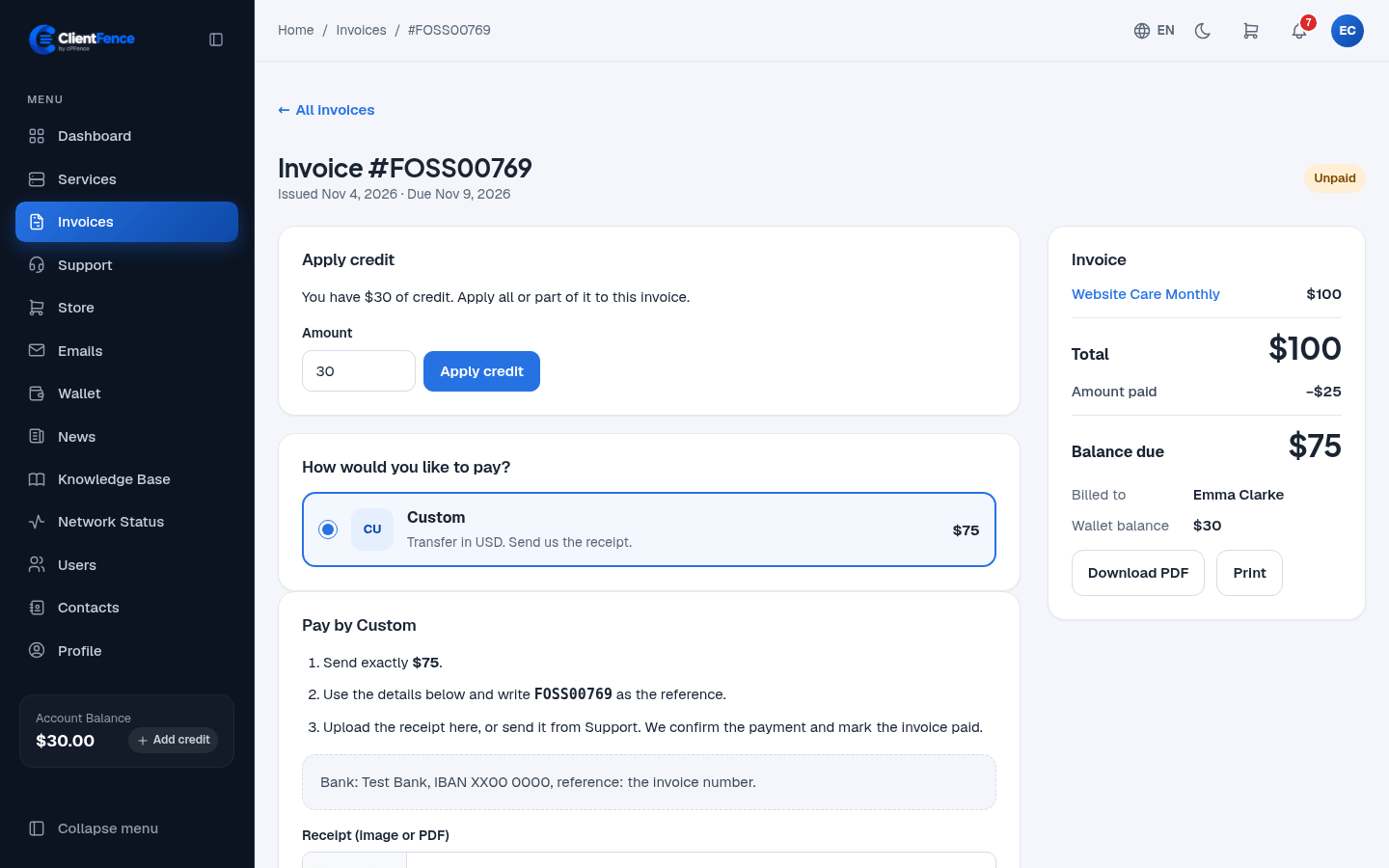
Section titled “Part payments and credit”A part payment leaves the invoice Unpaid. Check Amount paid and Balance due on the invoice. Stripe and PayPal collect the balance due when the client pays the rest.
To use the client’s balance, select Apply Credit, enter an amount, then select Apply Credit again. Staff can select Remove credit beside the applied amount while the invoice remains unpaid. See Wallet and account credit.
Refund a payment
Section titled “Refund a payment”See Refund a paid invoice for full and partial refunds, including refunds to account credit.
Payment receipts
Section titled “Payment receipts”When a client pays by a manual method, the invoice page shows your payment instructions and a Receipt (Image or PDF) field. The client uploads the transfer receipt and selects I have paid, send the receipt. This opens a support ticket, so your team can check the payment. Select Mark as Paid once you have received the full remaining balance.
Choose the help desk for these tickets in System → Settings → Invoices, under Payment receipts. The same page holds due days, reminders and invoice numbering.
Edit invoice wording and party details
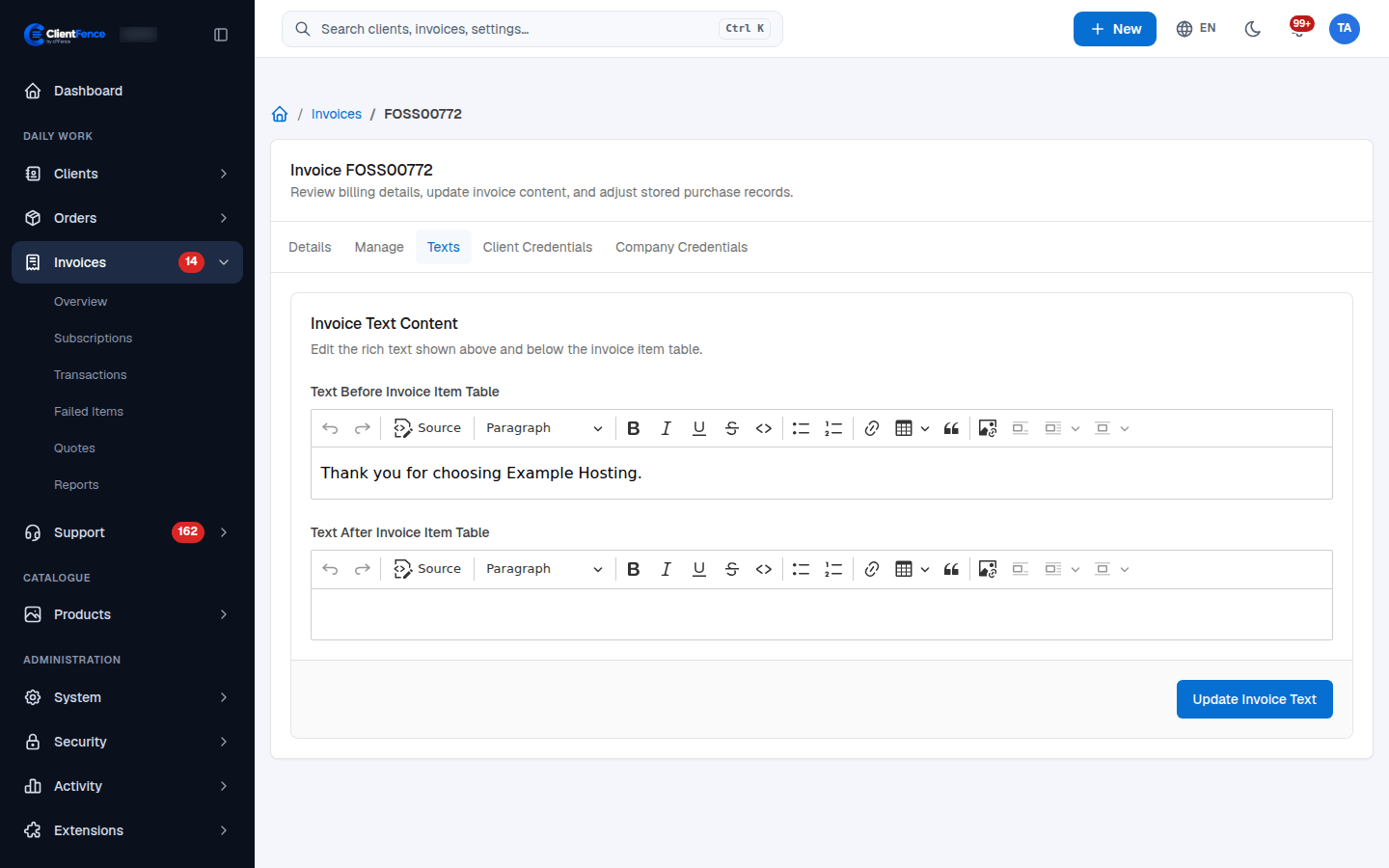
Section titled “Edit invoice wording and party details”- Open the invoice and select Texts.
- Set Text Before Invoice Item Table or Text After Invoice Item Table, then select Update Invoice Text.
- Use Client Credentials or Company Credentials to correct the buyer or seller details stored on this invoice. Save that tab’s form.
- Open View as Client or download the PDF and check the result.
These are invoice-specific details. Editing the client’s profile is a separate action and does not rewrite the invoice’s stored buyer details. Seller fields that were left empty may use the current company details as a fallback.
Wording and party-detail corrections remain available on paid invoices. Booked invoices keep their lines, tax rate, issue/payment dates and payment state; use the Refund workflow when a financial correction requires a replacement document.