

Orders and new orders
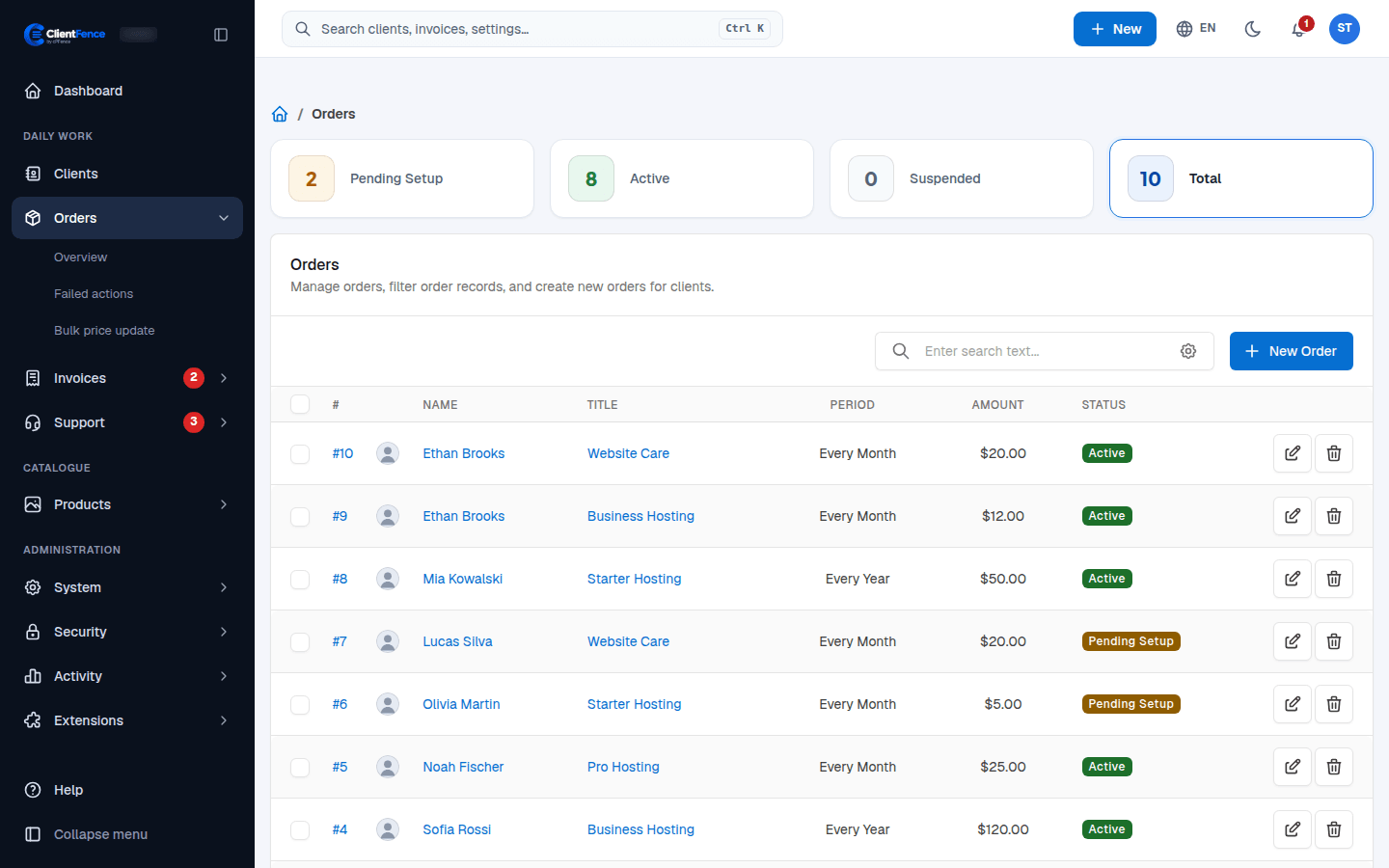
Every product a client buys becomes an order. Go to Orders → Overview to see them all. Use the search box, or the filter button in it, to filter by status, product, period or date.
Work on one order
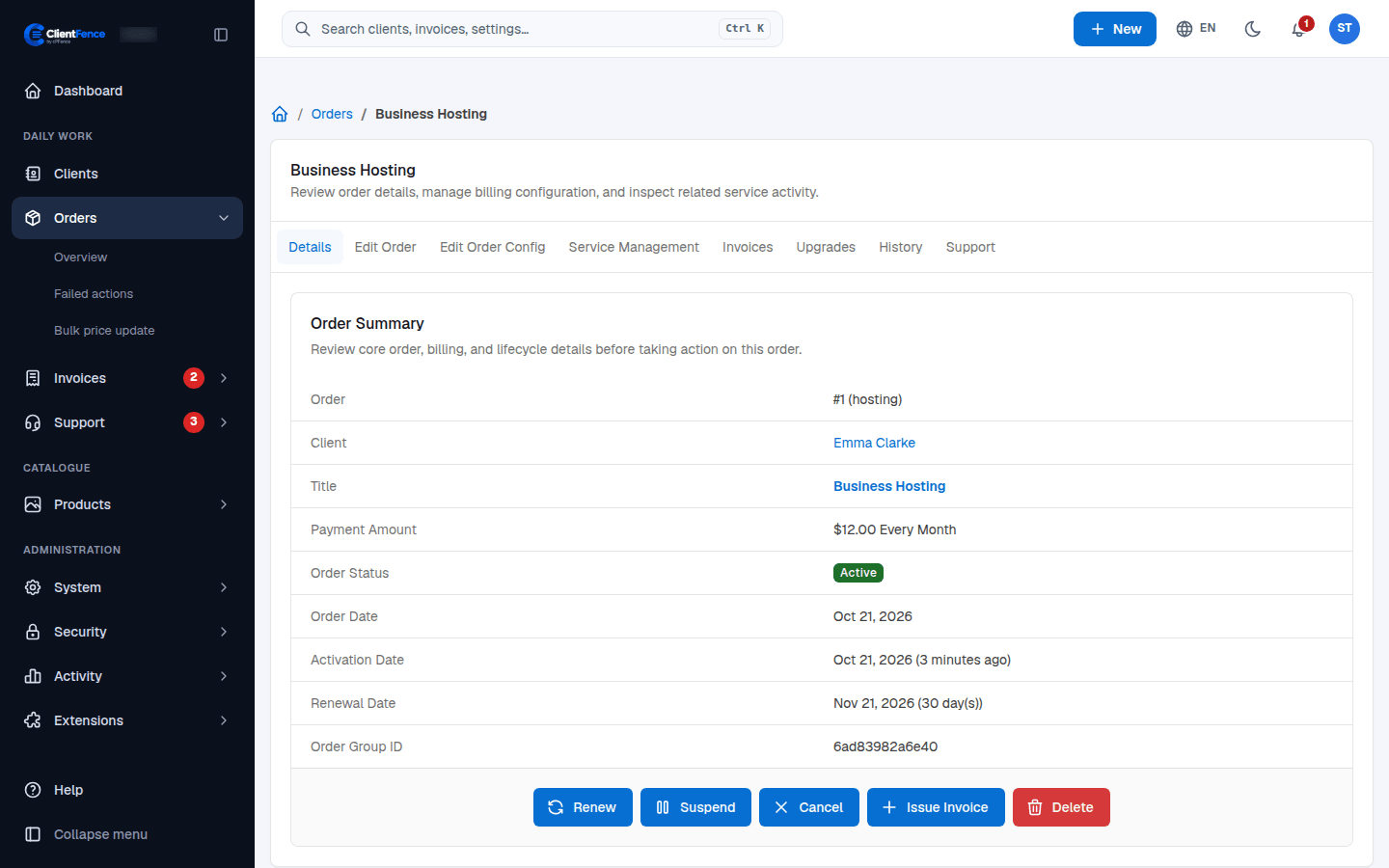
Section titled “Work on one order”Select an order to open it. The Details tab shows the client, price, status and renewal date, with buttons for the common actions:
| Button | What it does |
|---|---|
| Renew | Renews the service now. |
| Suspend / Unsuspend | Stops the service (with a reason) or starts it again. |
| Cancel | Cancel now, or schedule cancellation for the end of the billing period when the order has an expiry date. |
| Change Product | Move the service to another product and recalculate the recurring price. For hosting, review Change Package before saving. |
| Issue Invoice | Makes a new invoice for this order. |
| Delete | Removes the order. |
Review client requests in Cancellation requests.
The other tabs change the price and period (Edit Order), manage the service (Service Management), and list its Invoices, Upgrades, History and Support tickets.
Create an order for a client
Section titled “Create an order for a client”- Select New Order, choose the Client and the Product, then Continue.
- Pick the Invoice Option, the Period and whether to Activate Order now.
- If the client already paid another way, tick the box that the first invoice is paid and choose the Payment Gateway.
- Select Place New Order.
Export orders
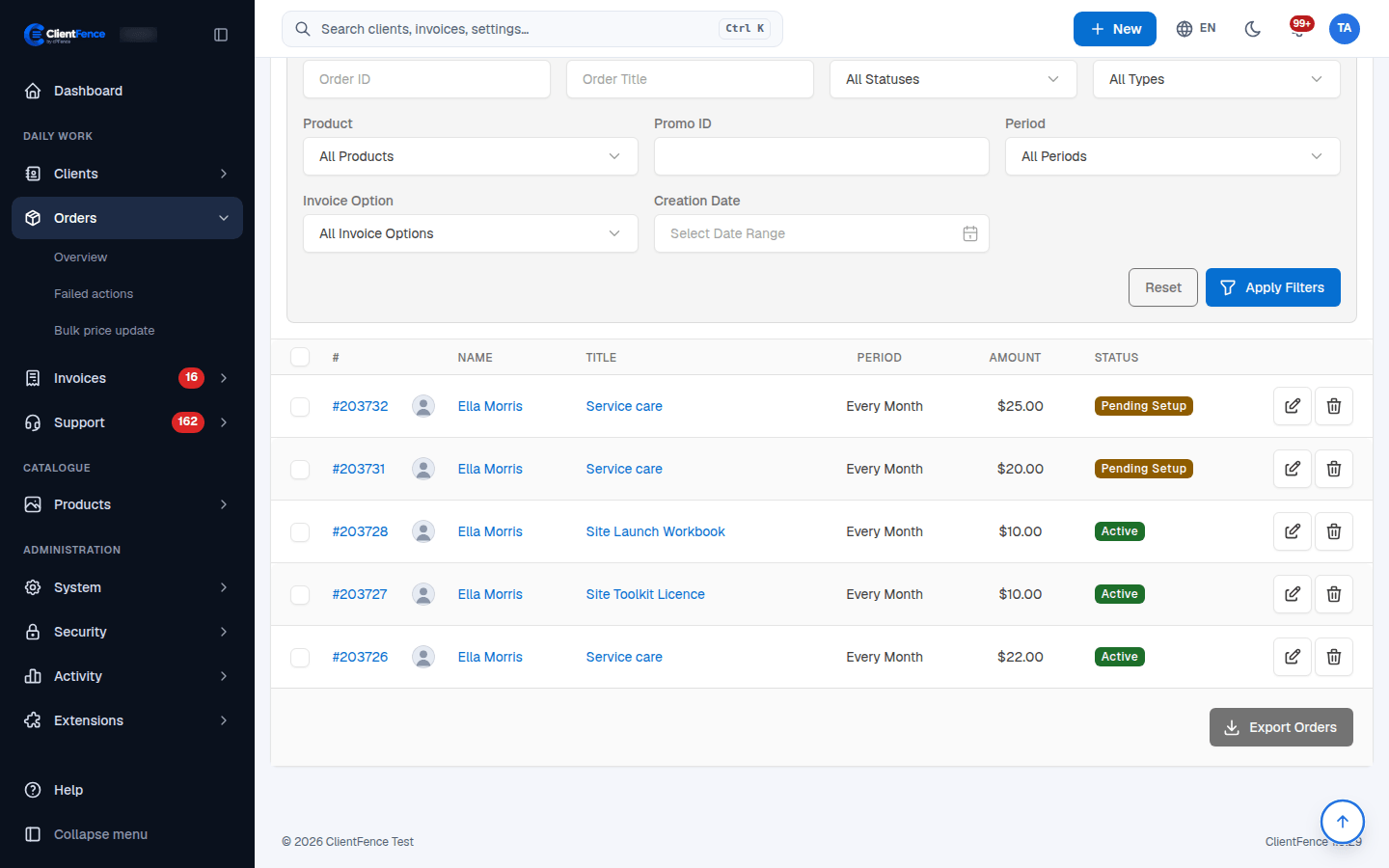
Section titled “Export orders”- Open Orders → Overview and select Export Orders.
- Save
orders.csvand open it in your spreadsheet application. - Use the order and client IDs to reconcile rows with ClientFence. Filter the spreadsheet to the subset you need.
The export contains all orders; the on-screen status, product and date filters do not limit the CSV. It includes billing fields such as price, currency, quantity, period, status and notes. Service provisioning configuration and credentials are excluded. Keep the export private because its notes and account references may contain customer information.
Change recurring prices in bulk
Section titled “Change recurring prices in bulk”Use Bulk price updates for product, period, status and currency filters, price methods and a preview before applying changes.