

Connect Enhance servers
ClientFence creates, suspends and removes hosting accounts on your Enhance servers. You add each server once, then link your hosting plans to it.
Add a server
Section titled “Add a server”- Go to System → Hosting Plans and Servers and stay on the Hosting Servers tab.
- Select New Server and fill in Name, Hostname (the panel’s host name) and IP.
- For Server Manager, choose Enhance (ClientFence).
- Enter the Organization ID (the UUID in the panel address) and an API token from Enhance. Allow this server’s IP address on the token.
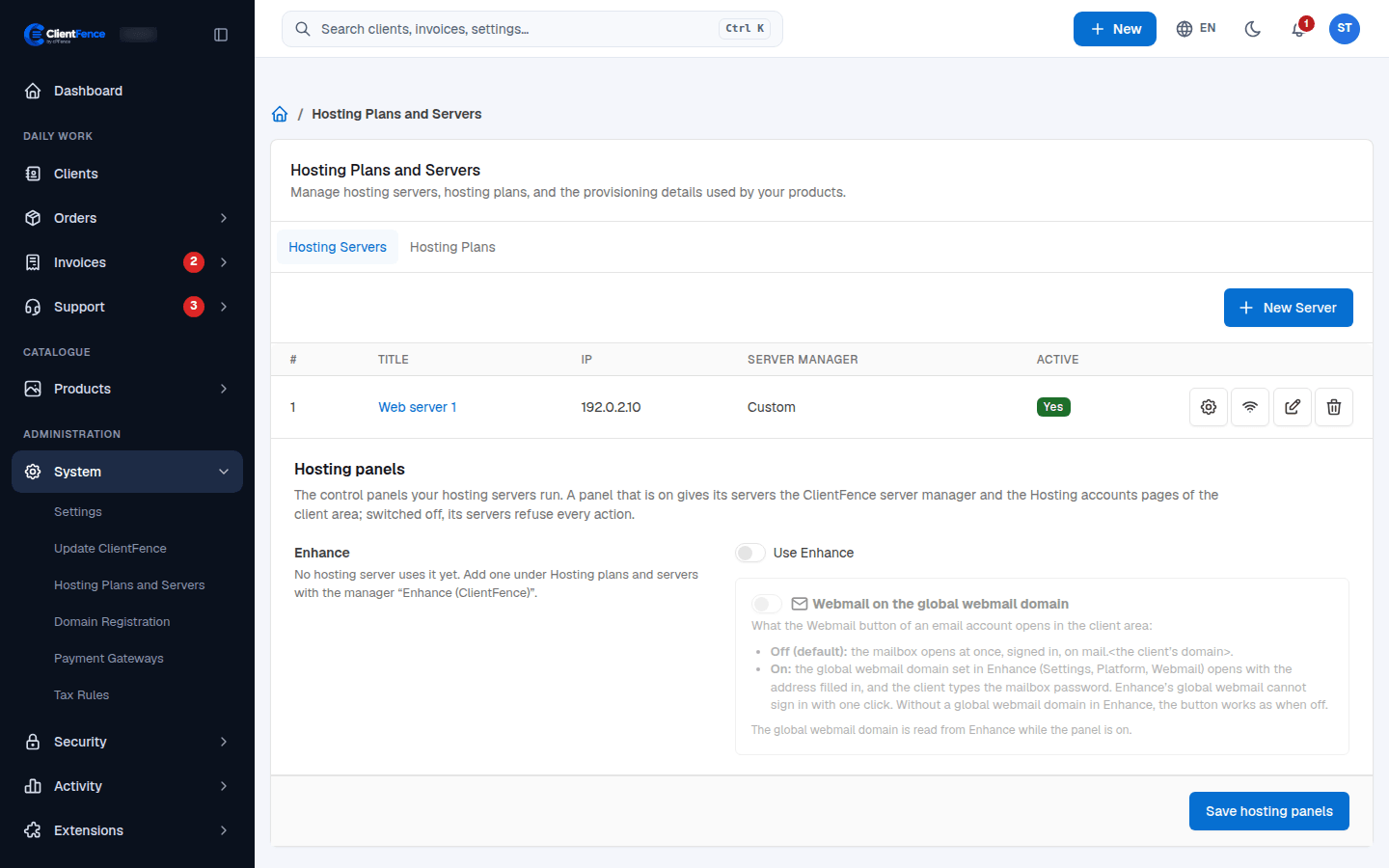
- Save, then select Test Connection (the signal icon) on the server’s row.
Switch on the Enhance panel
Section titled “Switch on the Enhance panel”Under Hosting panels on the same tab, turn on Use Enhance and select Save hosting panels. While it is off, Enhance servers refuse every action and clients do not see their Hosting accounts pages.
Webmail on the global webmail domain sets what the Webmail button of a mailbox
opens. Off (the default), the mailbox opens signed in on mail.<the client's domain>.
Make hosting plans
Section titled “Make hosting plans”On the Hosting Plans tab, pick the server and select Load plans. Choose the Enhance plans you want and select Make hosting plans. A hosting plan is linked to the Enhance plan with the same name.
Then use the hosting plan in a product: see Products.
Check services that need attention
Section titled “Check services that need attention”The daily check compares linked subscriptions in Enhance with their services in ClientFence. A missing subscription or a status mismatch appears under Orders → Failed actions. Check both systems, correct the mismatch, then select Retry to run the check again. For a failed provisioning action, Retry tries provisioning again after you fix the cause. See Failed actions.