

Import email into support tickets
ClientFence reads a help desk’s IMAP mailbox and turns messages into tickets or replies. Set up outbound email separately.
- Go to System → Settings → Support → Help Desks and open a help desk.
- In Email importing, turn on Import email from this mailbox. Enter the IMAP server, Encryption, Port, Username, Password, and Folder. Keep certificate checking on when using TLS.
- Select Save mailbox, then Test connection.
- Send a test message to the mailbox and select Read now. Open Support → Email import log to check the result and follow the link to the ticket.
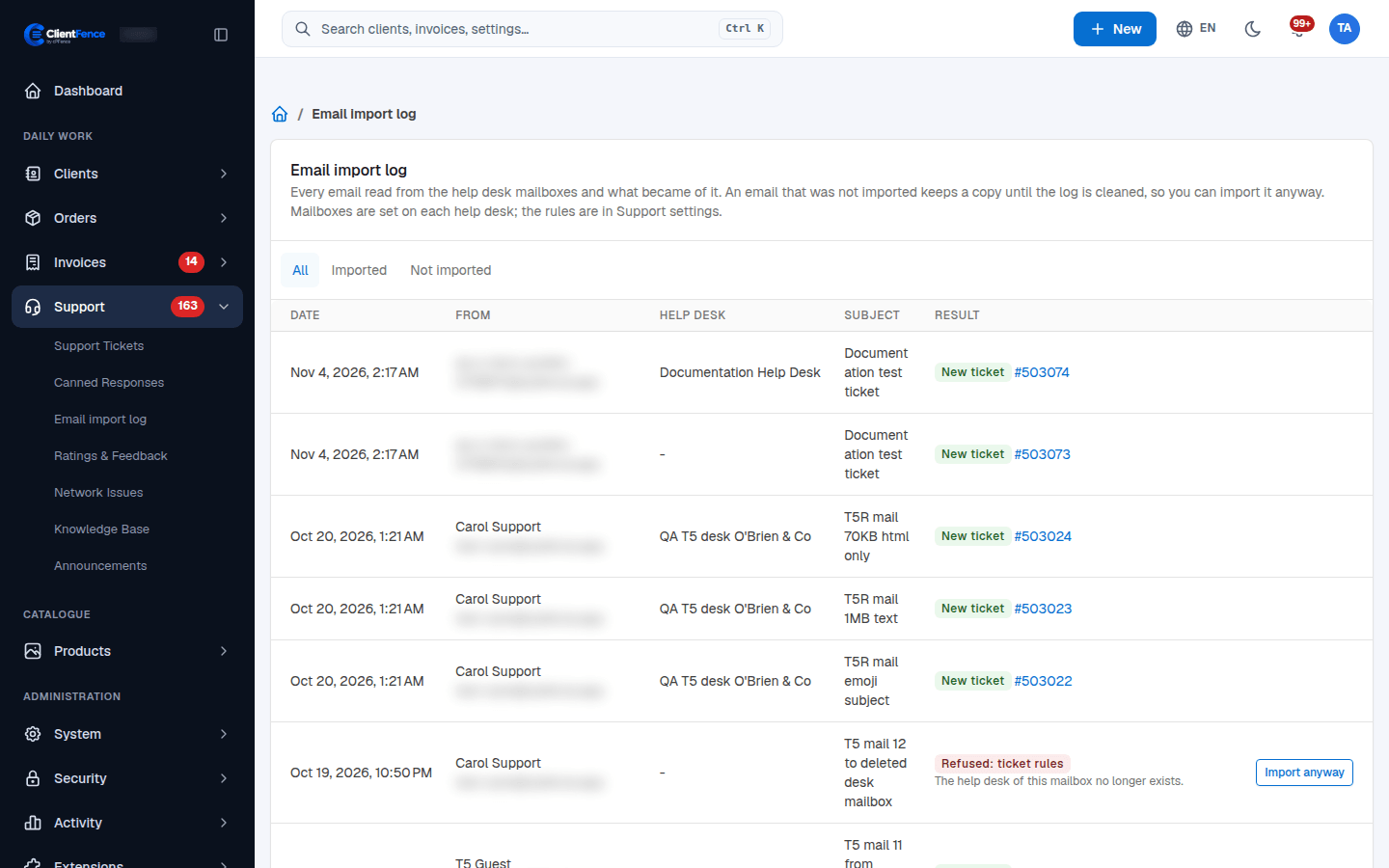
Use Clients only to accept mail from existing clients. Use Replies only to keep new ticket creation in the portal. The cron reads enabled mailboxes. If mail is missing, check the mailbox folder, the log, and the last cron run.