Download account statements
An account statement brings a client’s billing entries into one dated ledger.
From the client area
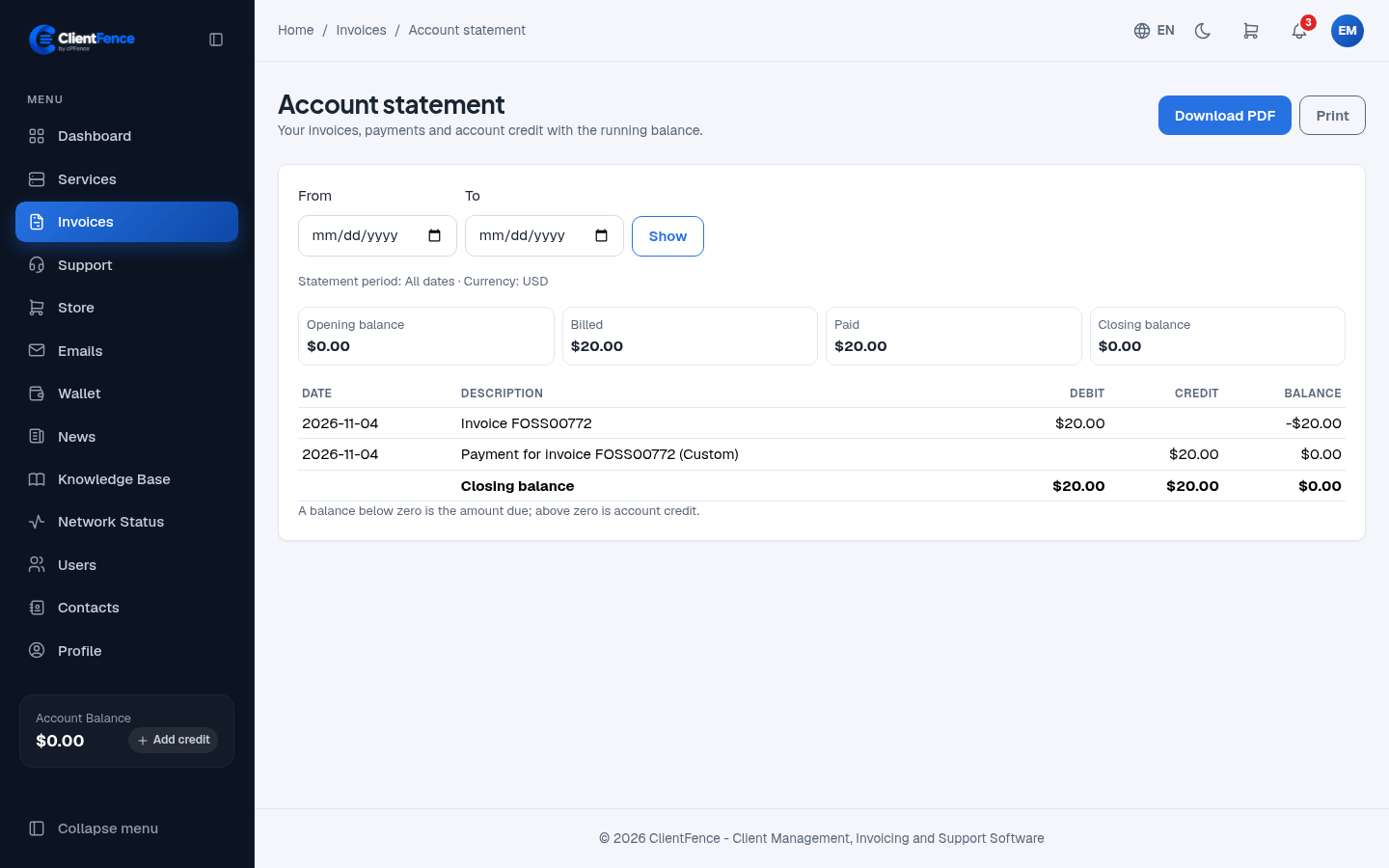
Section titled “From the client area”- Open Invoices, then select Account statement.
- Set From and To, then select Show. Leave them blank for the full history.
- Review the opening balance, dated debit and credit entries, and closing balance.
- Select Download PDF to keep the filtered statement.
Debits increase the amount owed; credits reduce it. The opening balance carries entries before the selected period. The closing balance includes the selected period’s entries. A negative balance means the client owes money; a positive balance means credit. Canceled and refunded invoices and their payments are excluded. This ledger is separate from the client’s spendable wallet balance.
From the admin area
Section titled “From the admin area”Open Clients, select the client, then Client Summary → Other Actions → Account Statement (PDF). Staff downloads use the staff member’s language; client downloads use the client’s language.
For one invoice or payment receipt, use Invoices instead.