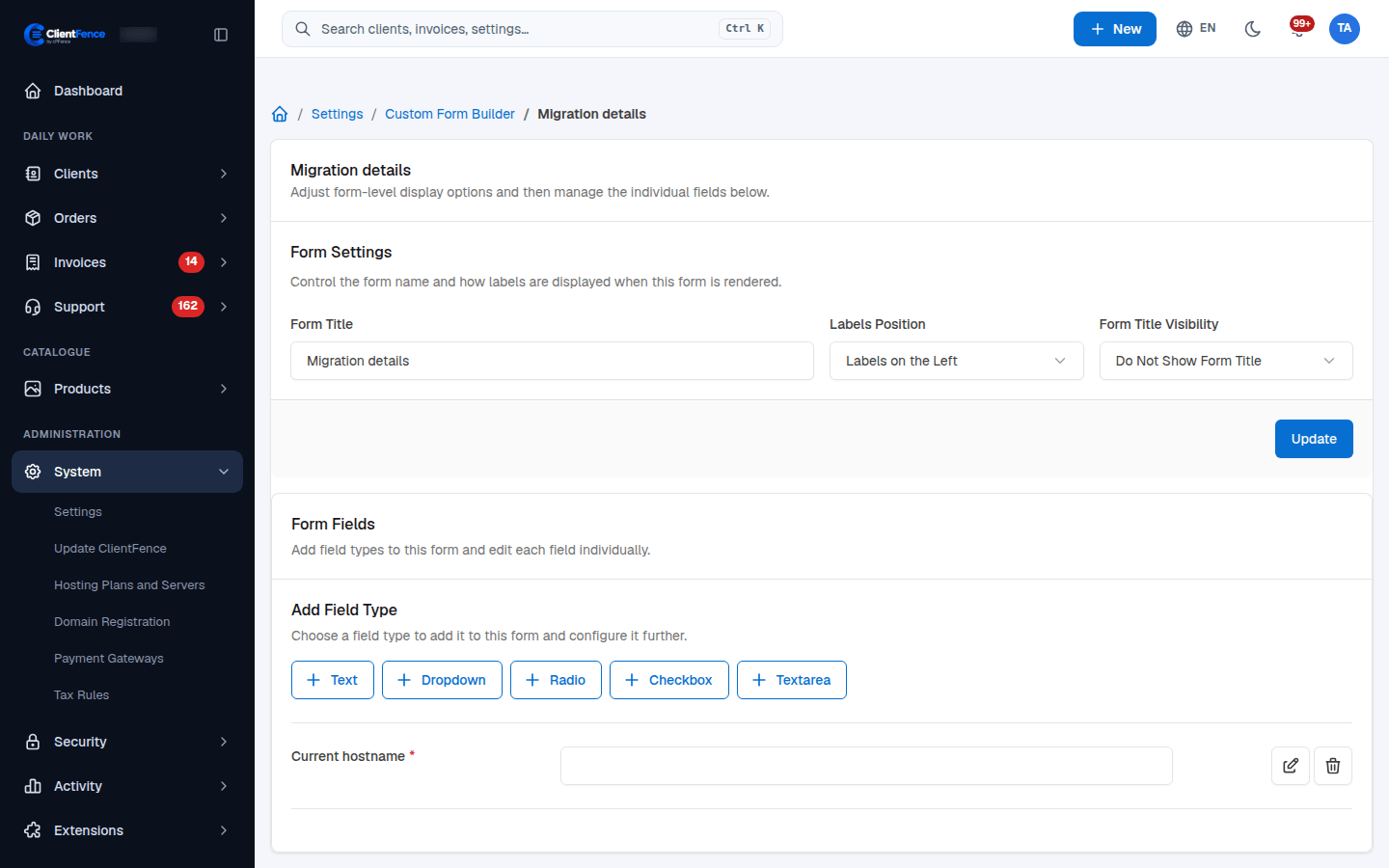
Build custom product order forms
Form Builder collects answers, such as a migration hostname or project notes. It does not add a price; use Configurable options for paid choices.
- Open System → Settings → Form Builder and create a form.
- Add a field. Set its label, type and internal name, plus help text or choices where needed.
- Mark fields Required when an answer is necessary, then save and preview the form.
- Edit a product and select the form in General Settings → Order Form. Select Update.
- Place a test order. Confirm that required fields are checked and that its answers appear on the order’s Edit Order Config tab.
Use clear labels that explain what the client should enter. Do not request passwords or secret keys in a general order form. Hidden or read-only fields are presentation settings, not access controls.
Custom registration fields belong in Client registration.