Sell and update downloadable files
Downloadable products give clients a file after their order is activated.
- Create a Downloadable product and set its price and activation policy.
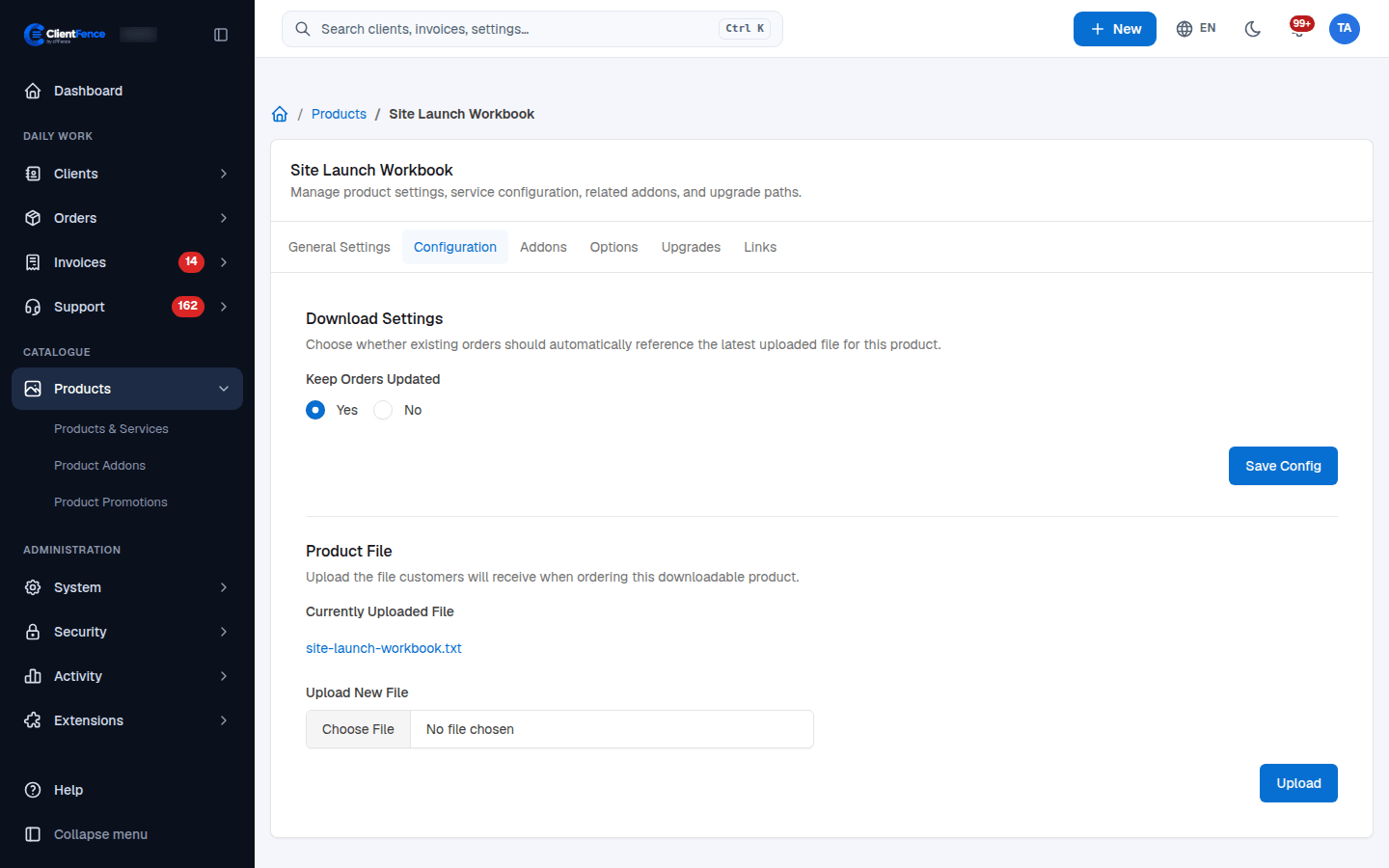
- On Configuration, choose Keep Orders Updated and select Save Config.
- Under Upload New File, choose the file and select Upload. Check Currently Uploaded File.
- Activate a test order and download the file from its client service page.
| Setting | What happens when you upload a replacement |
|---|---|
| Keep Orders Updated → Yes | Existing orders use the product’s latest uploaded file. |
| Keep Orders Updated → No | Existing orders retain their assigned file; new orders receive the replacement. |
To replace a file for one order, open Orders → order → Service Management and use its file upload. This affects that order, rather than replacing the product’s catalogue file.
Upload a supported file type and test the actual download before announcing an update. Replacing a file does not charge clients again.