

Find your way in the admin area
The admin area is where you and your staff run the business. It lives at /admin on your
site unless you chose a private address in Quick setup.
The dashboard
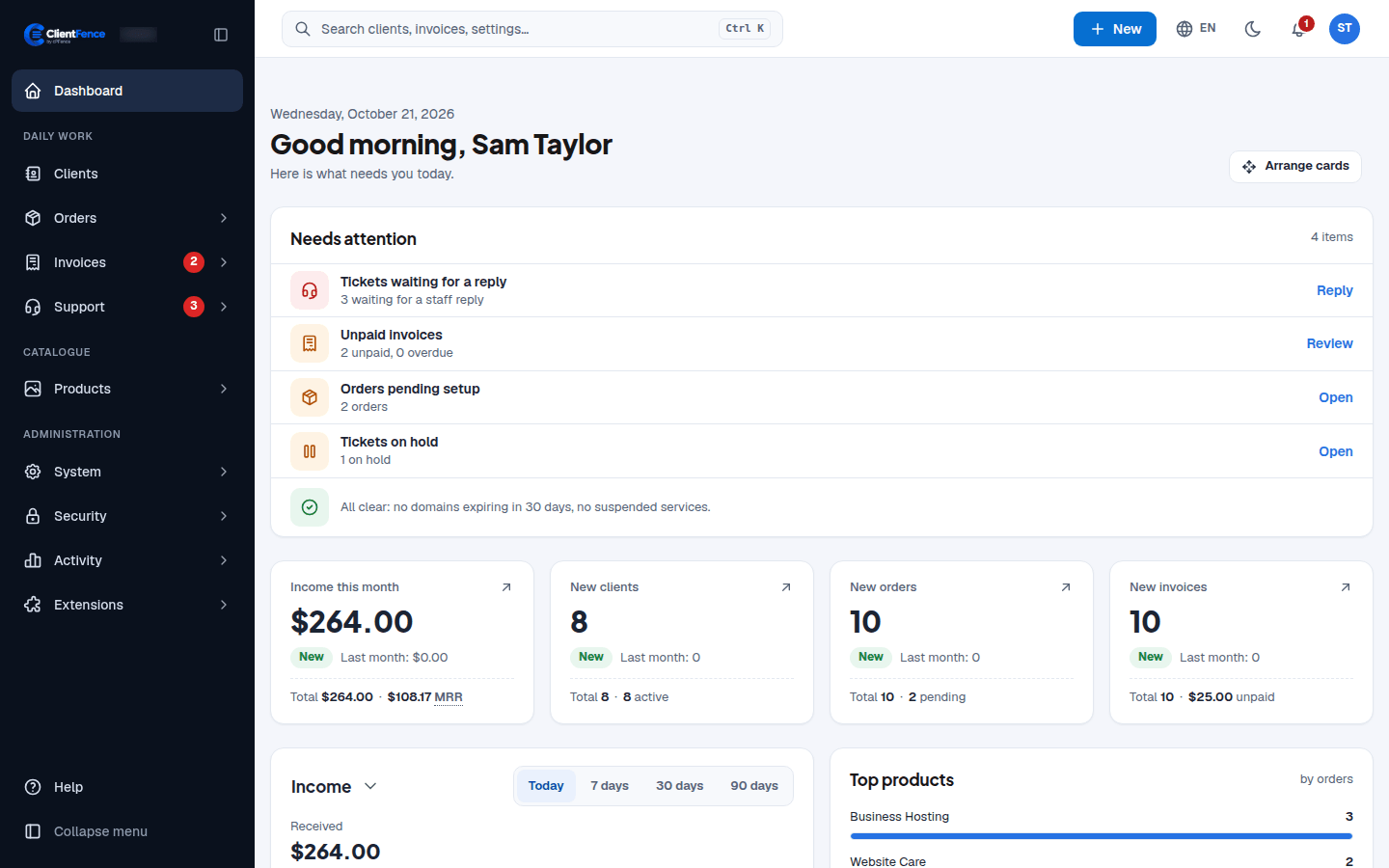
Section titled “The dashboard”Needs attention lists what is waiting for you: tickets to answer, unpaid invoices, orders that failed to activate or wait for setup, and suspended services. Select Reply, Review or Open to go there. Below it are cards with income, new clients, orders and invoices. Select Arrange cards to move them around.
The menu and top bar
Section titled “The menu and top bar”- The left menu has Daily work (clients, orders, invoices, support), Catalogue (products) and Administration (system, security, activity, extensions).
- New starts a new order, invoice, client, product, ticket and more.
- The globe switches the language, the moon switches dark mode, and the bell shows notifications.
Search with Ctrl+K
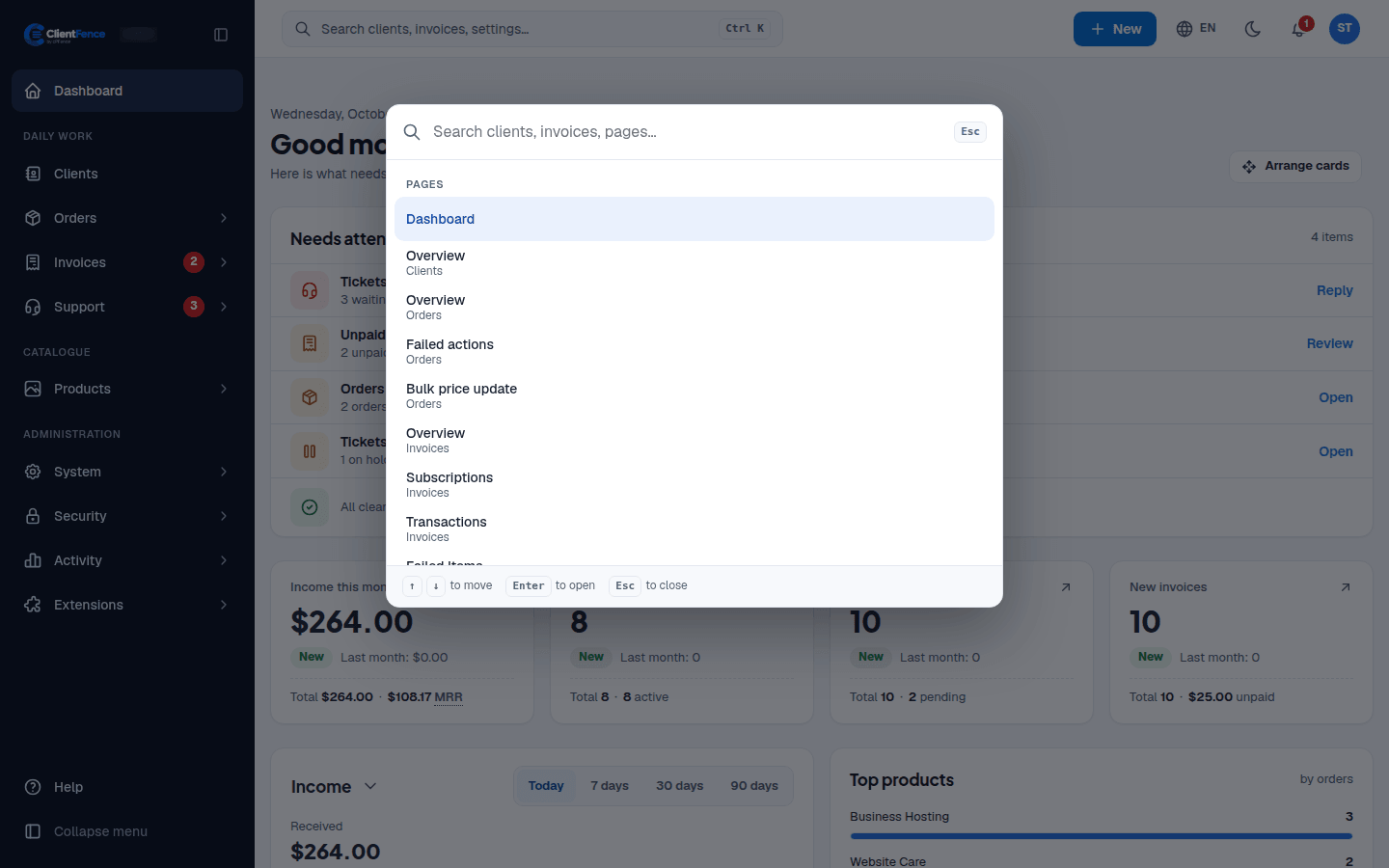
Section titled “Search with Ctrl+K”Press Ctrl K (or select the search box) to find clients, invoices and admin pages. Use the arrow keys to move, Enter to open and Esc to close.
Notifications
Section titled “Notifications”Open the Notifications bell to review updates. Use Mark as read to clear an unread indicator or Dismiss to remove an item from the list.
Advanced administrators can inspect Widgets and event hooks or configure Staff API integrations.