

Sign-in security for staff and clients
Three extra checks make a stolen password useless on its own. All are off until you turn them on. Only Super Administrators can change them.
- Go to Security → Settings and open the Sign-in tab. (In earlier versions this was the Sign-in security tab of System → Settings → System.)
- Choose your options (below).
- Select Save.
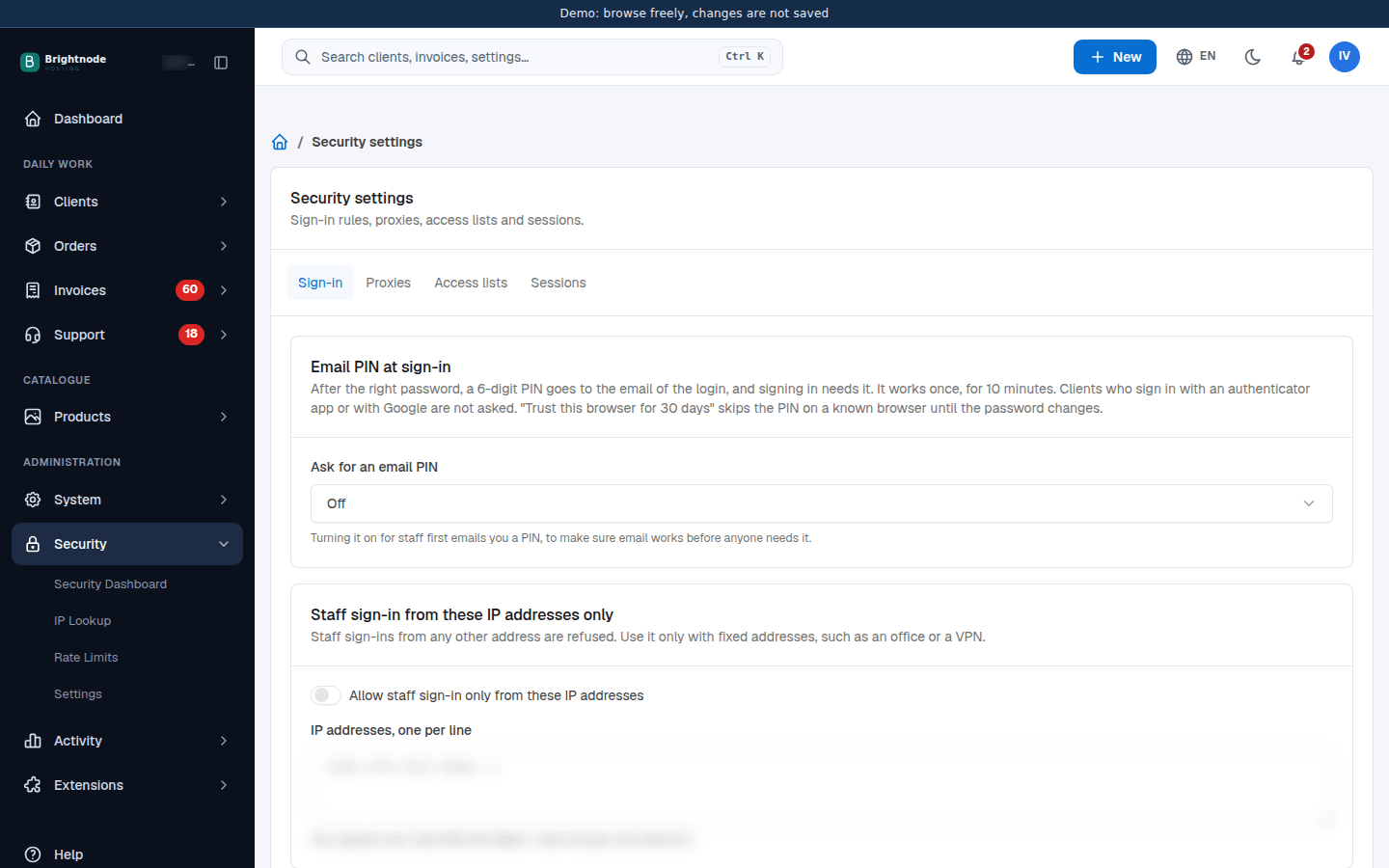
Email PIN at sign-in
Section titled “Email PIN at sign-in”Set Ask for an email PIN to Staff only, Clients only or Staff and clients. After the right password, a 6-digit PIN goes to the email of that login. It works once, for 10 minutes. Trust this browser for 30 days skips the PIN on a known browser until the password changes.
Clients who use two-factor sign-in or Google sign-in are not asked. Turning it on for staff first emails you a PIN, to prove email works.
Staff sign-in from these IP addresses only
Section titled “Staff sign-in from these IP addresses only”Turn on Allow staff sign-in only from these IP addresses and enter the addresses under IP addresses, one per line. Staff sign-ins from any other address are refused. Use it only with fixed addresses, such as an office or a VPN. Save refuses a list without the address you are signing in from, so you cannot lock yourself out.
Staff sign-in from chosen countries only
Section titled “Staff sign-in from chosen countries only”Turn on Allow staff sign-in only from these countries and pick the Countries. An empty list starts with the country you are signing in from. Sign-ins from any other country, or from an unknown one, are refused, and Save refuses a list without your own country. Addresses on the IP address list above always pass, so add a fixed office or server address there as a way back in.
Staff password reset
Section titled “Staff password reset”Allow staff to reset a forgotten password by email is on by default: the staff login shows Forgot your password?, which emails a reset link. Turn it off when only a Super Administrator resets staff passwords. It was Allow Staff Reset Passwords under System → Settings → Staff before.
Proxies, the addresses that are never rate limited, API key addresses and the same browser check are on the other tabs of the same page: see Proxies, access lists and sessions.