

Company details and branding
Your company details and logos appear on invoices, emails and the client area. The quickest way to set them, with a brand color and sign-in page style, is the Branding step of Quick setup.
Company details
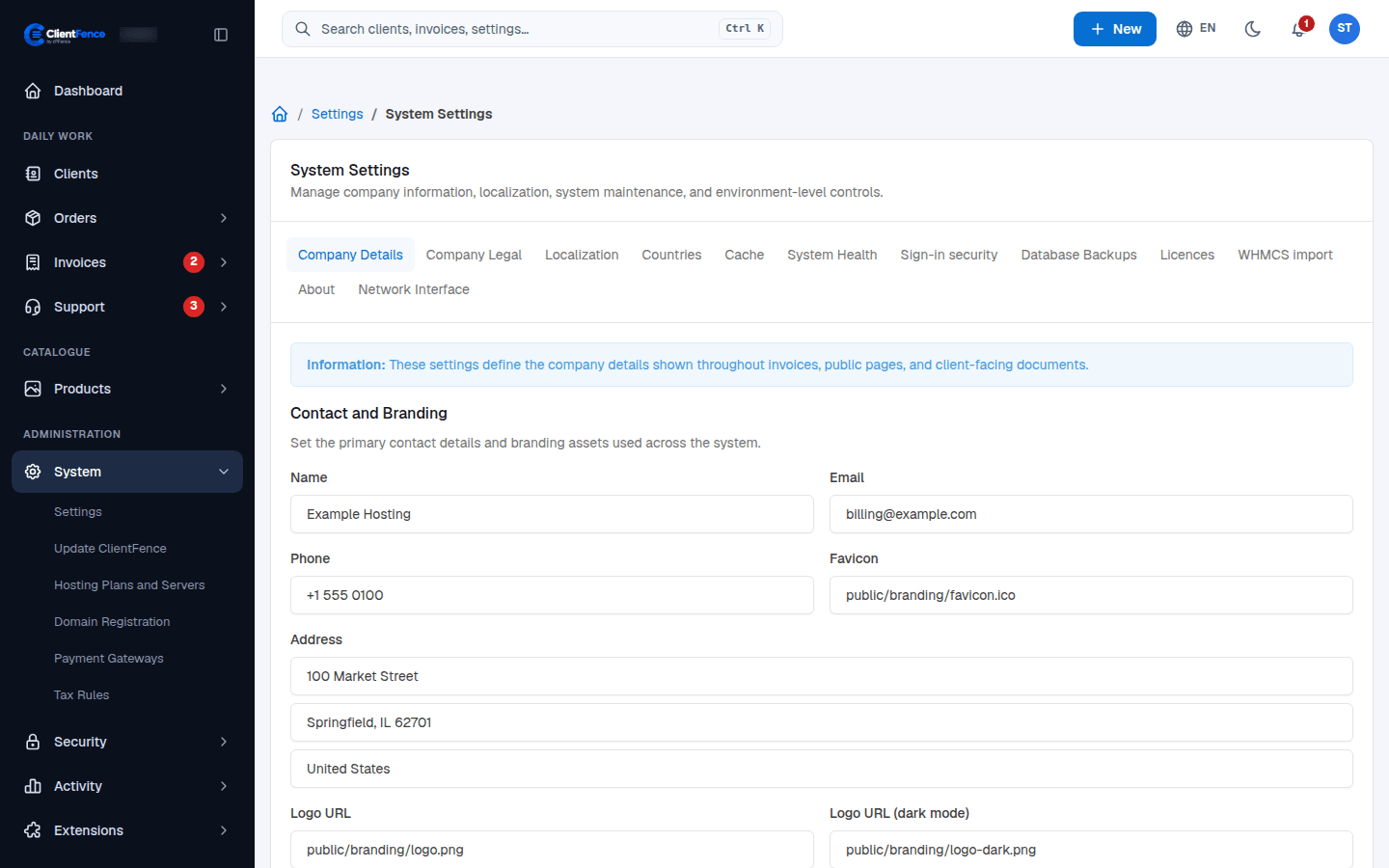
Section titled “Company details”- Go to System → Settings → System. The Company Details tab opens.
- Fill in the name, email, phone and address.
- Set Logo URL, Logo URL (dark mode) and Favicon.
- Optional: add your company and VAT numbers, bank details and a signature.
- Select Update Settings.
The Company Legal tab holds your terms of service and privacy policy texts.
System → Settings → Theme shows the client area theme (Palisade) and the admin theme. Select Settings next to Palisade to choose the first color mode visitors see, what the header and sign-in page show, and more.
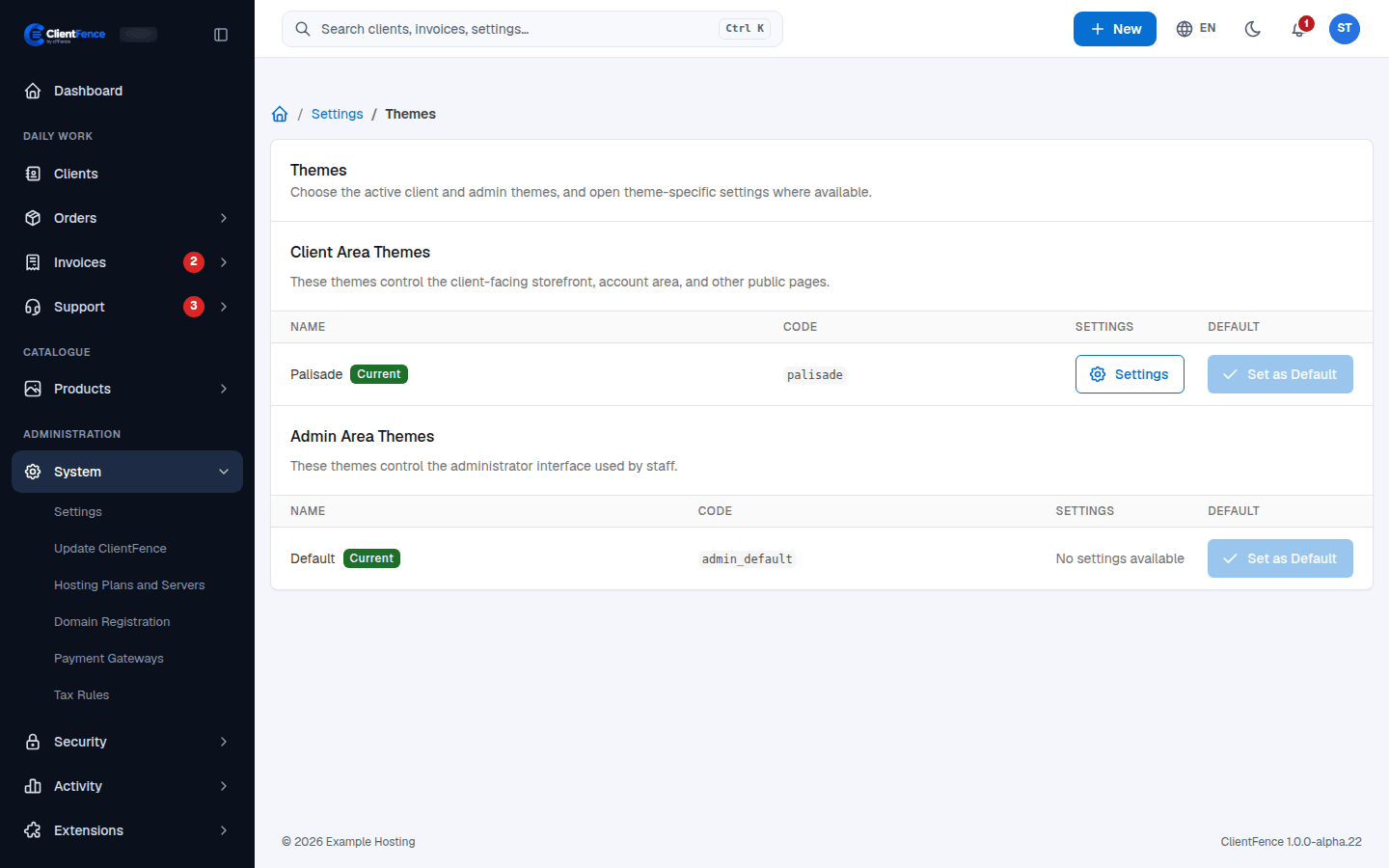
See Configure Palisade for presets, navigation and checking the result as a visitor and client.