

Redirect old addresses
The Redirect extension sends visitors who open an old address of your client area to a new page or to another website. If it is off, turn on Redirect in Extensions → Overview first.
Add a redirect
Section titled “Add a redirect”- Go to System → Settings and select Redirect.
- Select Add redirect.
- Fill in the Path: the part after your client-area address, such as
old-page. - Fill in the Target: a full address such as
https://www.example.com/pricing, or a client-area path such asnews. - Choose the Type and select Save.
| Type | Use it when |
|---|---|
| 301 – Permanent | The page has moved for good. |
| 302 – Temporary | The move is for a while, such as a short promotion. |
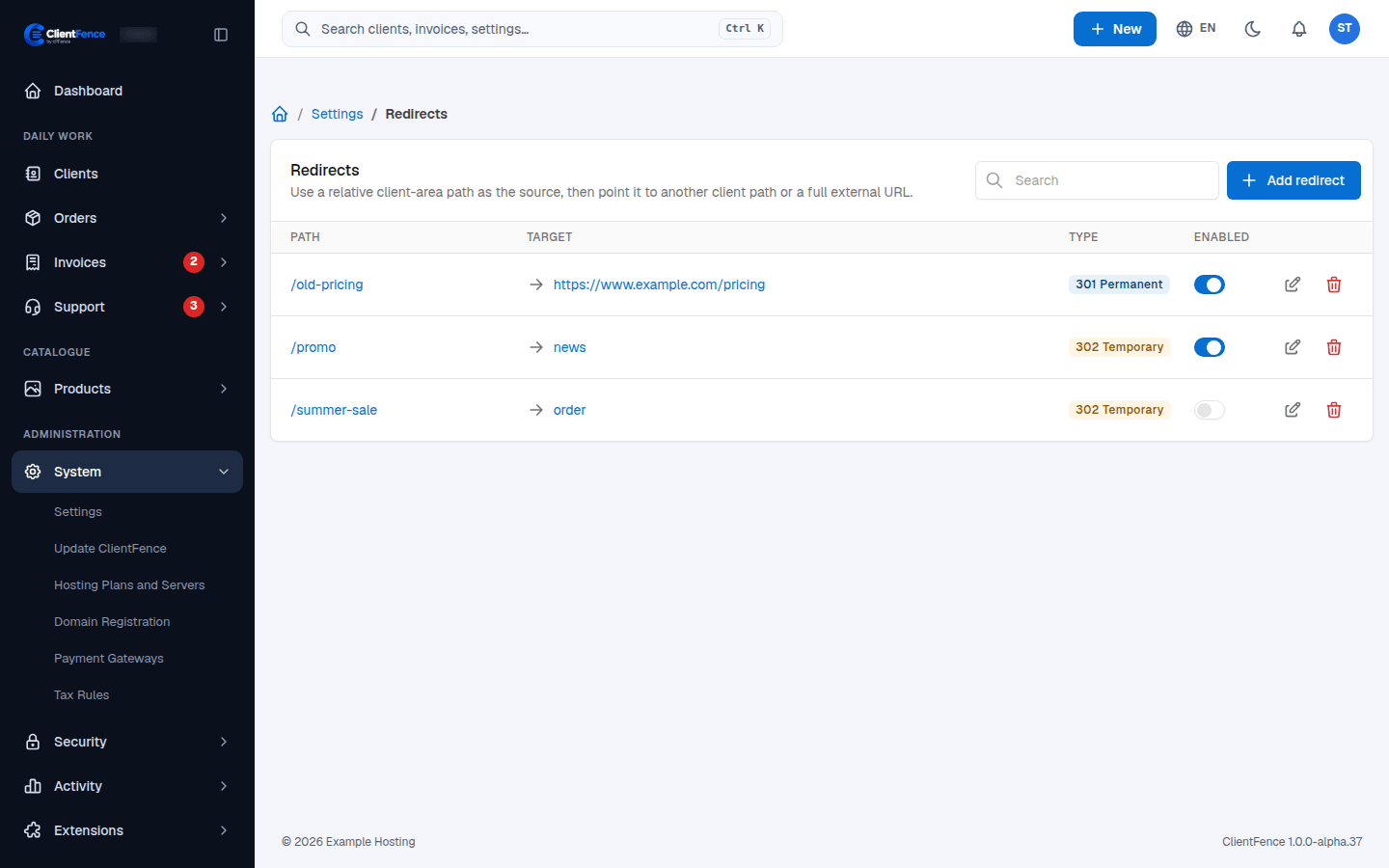
Manage redirects
Section titled “Manage redirects”- The Enabled switch turns a redirect off or on. A redirect that is off is ignored, so its path shows the normal “page not found” (404) page.
- Search finds a redirect by its path or target.
- The edit button changes a redirect; the delete button asks you to confirm first.