Configure registration and countries
Set up the information clients must provide before opening registration.
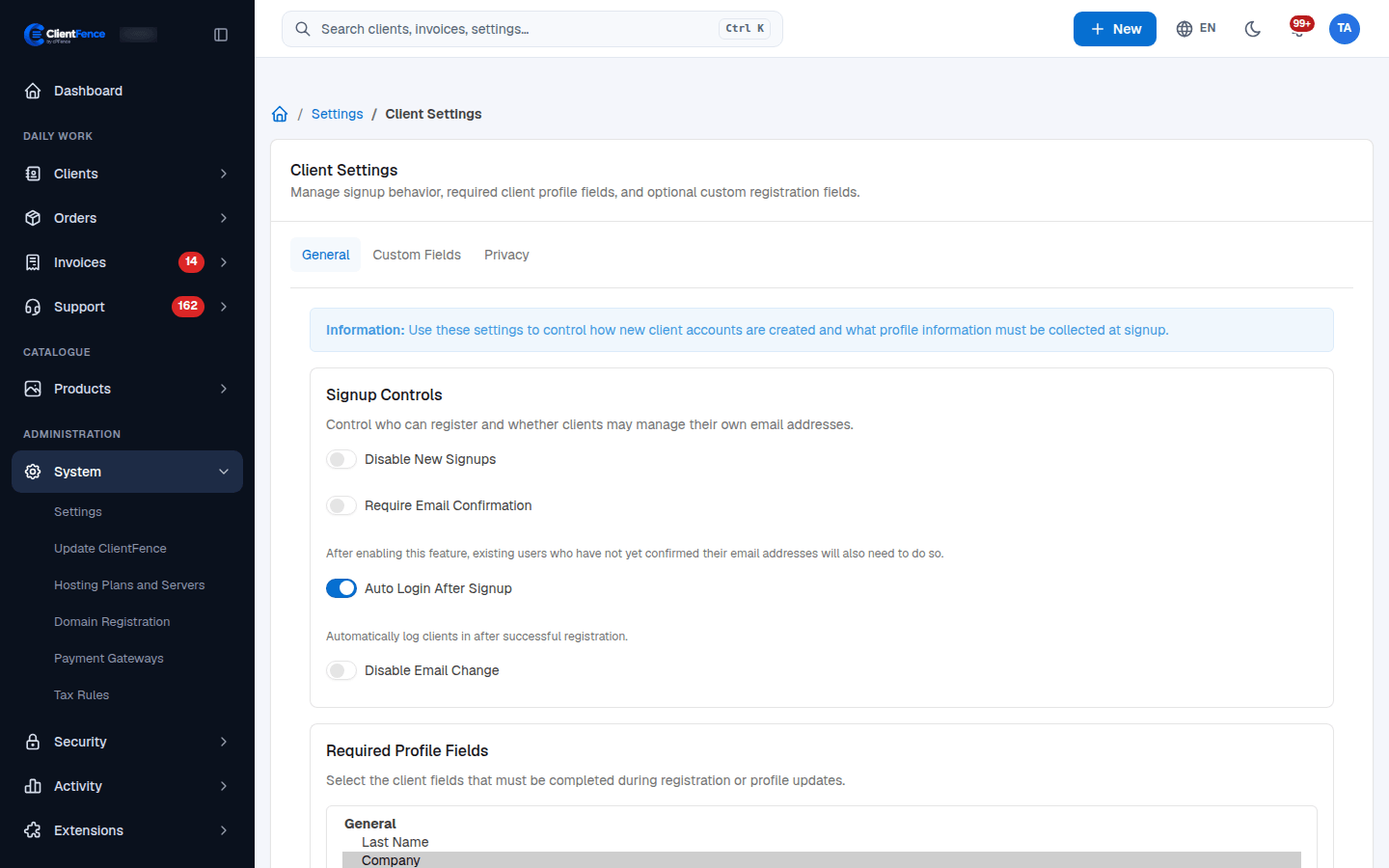
- Go to System → Settings → Client and open General.
- Review Disable New Signups, Require Email Confirmation, Auto Login After Signup and Disable Email Change.
- Under Required Profile Fields, select the standard fields you need. Save the configuration.
- On Custom Fields, give each extra field a Field Title, set it Active, and choose whether it is Required. Save again.
- Open the signup page in a signed-out browser and test both missing and valid answers.
Enabling email confirmation also affects existing accounts that have not confirmed their email. Check Outgoing email before enabling it.
Choose countries
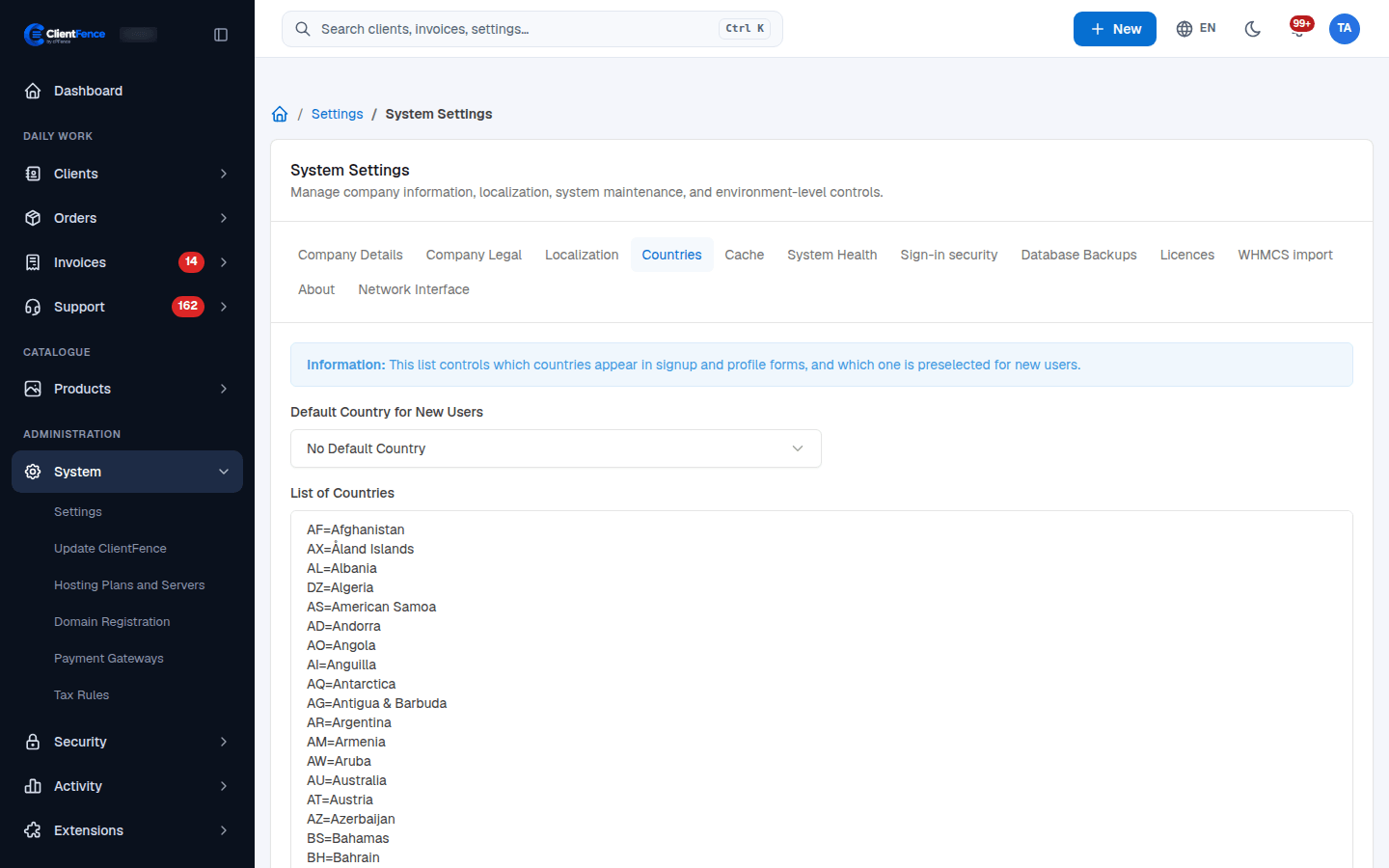
Section titled “Choose countries”Under System → Settings → System → Countries, set Default Country for New Users and List of Countries, then save. Enter country choices one per line as a two-letter code and label, such as US=United States. The default preselects a country; the list controls the country choices offered by forms. Check signup and an existing client’s profile after changing it.
This list does not restrict staff access by location. Staff country limits belong to Sign-in security.
Product-specific questions belong in Custom order forms.