

Taxes and credit notes
Tax is added to invoices from tax rules. Credit notes record money given back.
Set up tax
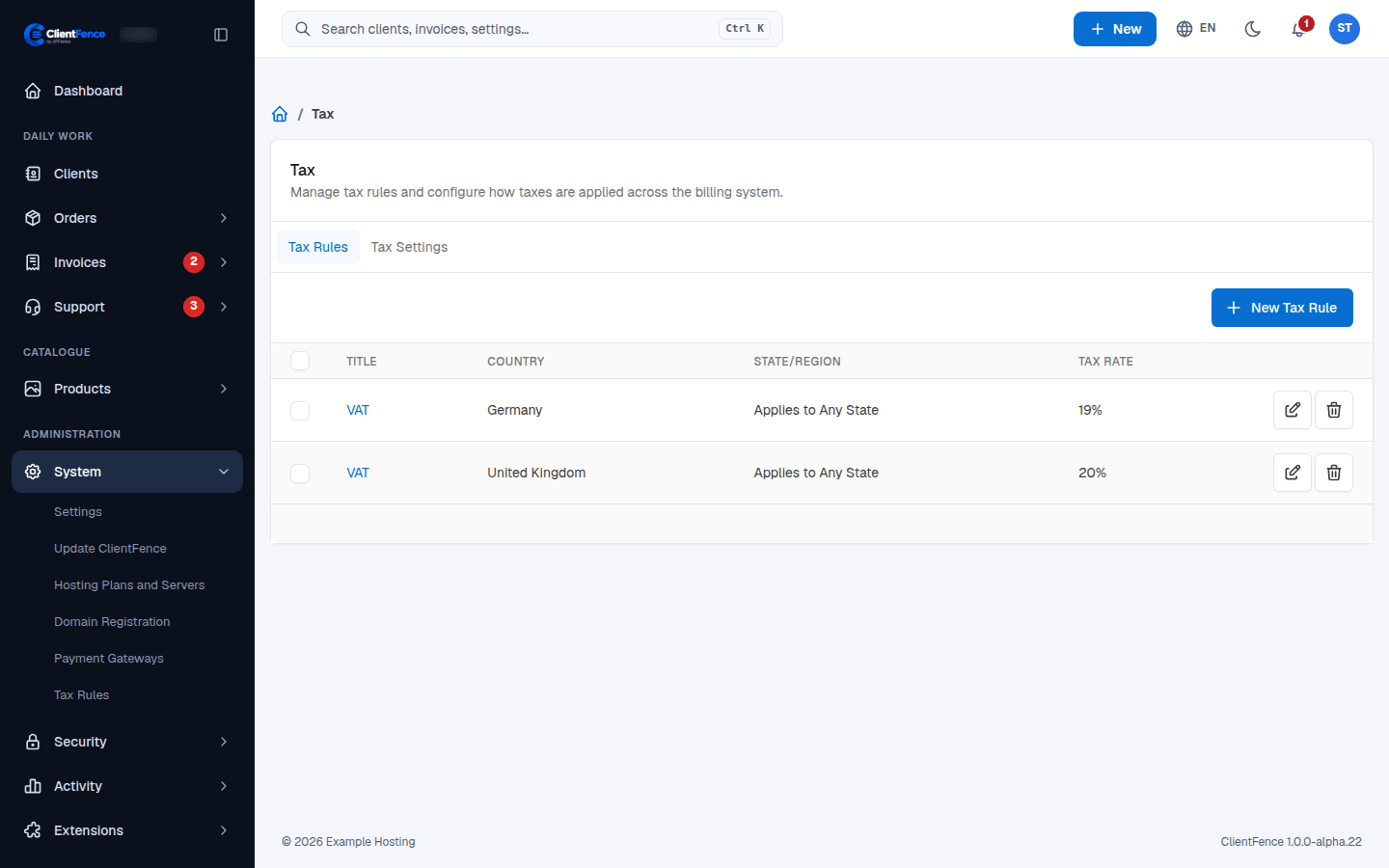
Section titled “Set up tax”- Go to System → Tax Rules, open Tax Settings, turn on Enable Tax Support and select Update Tax Settings.
- On Tax Rules, select New Tax Rule. Enter a Tax Title and Tax Rate, and optionally a Country and State/Region. Select Create.
Each client gets the rule that best fits their address:
- A rule for their country and state.
- Otherwise, a rule for their whole country (no state).
- Otherwise, a rule with no country.
To include tax in catalogue prices, turn on Prices include tax under Tax Settings. For example, at a 20% tax rate, a price of $120 includes $20 in tax. An exempt client pays the $100 net price. Set Exempt from Tax on the client’s Edit tab.
Refunds and credit notes
Section titled “Refunds and credit notes”Choose how ClientFence records a refund in System → Settings → Invoices, under Refunds Settings → Refunds Logic.
| Option | What happens |
|---|---|
| Credit Note | Makes a credit note with its own numbers. |
| Negative Invoice | Makes a refund invoice that continues the paid invoice numbers. |
| Manual | Does nothing. You handle the refund yourself. |
When a downgrade gives the client credit for unused time, ClientFence makes a credit note with a CN- number, and the money goes to the client’s account credit. See Upgrades and downgrades and Wallet and account credit.
The Sales Tax Liability report shows the tax on paid invoices. See Reports.