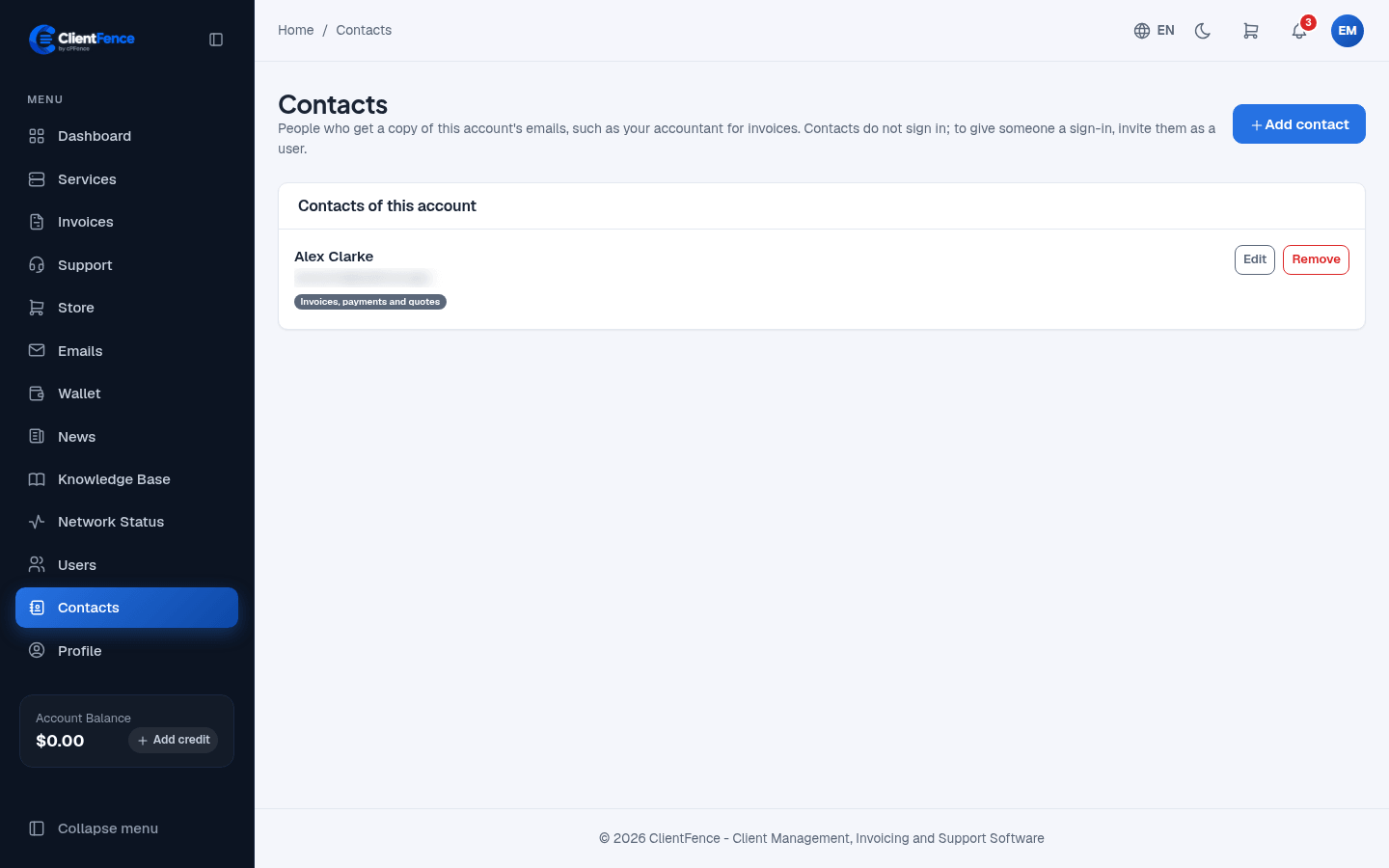
Manage client email contacts
Contacts receive email copies. They do not get a password or access to the account.
- In the client area, open Contacts and add a contact.
- Enter the person’s name and email, plus any contact details needed.
- Select the email categories they should receive and save.
- Edit or delete the contact when their responsibilities change.
| Email choice | What the contact receives |
|---|---|
| General account emails | General account notices. |
| Invoices, payments and quotes | Billing copies. |
| Services (including welcome emails with sign-in details) | Service messages, which may contain hosting credentials. |
| Domains | Domain notices. |
| Support tickets | Copies of the account’s ticket emails. |
Account sign-in links, password resets and security codes are not copied. Choose service copies only for people who should receive service credentials.
Staff manage the same contacts under Clients → client → Contacts. Authorized users need the Contacts permission and permission for the categories they select. For people who need to sign in, add Client users instead.